To turn on first-party cookies in Safari, you only need to switch off one setting: Block All Cookies. Safari accepts first-party cookies by default, so there is no separate "allow" switch. On a Mac, open Safari > Settings > Advanced and deselect Block all cookies. On an iPhone or iPad, open Settings > Apps > Safari (Settings > Safari on iOS 18 and earlier) and turn off Block All Cookies. Reload the page and the site can save your login, cart, and preferences again.
The trouble is that a setting, an extension, and Safari's own tracking rules all produce the same symptoms. Logins don't stick, carts empty, and a site tells you cookies must be enabled. Search results also mix first-party and third-party advice, so you can end up loosening privacy settings you never needed to touch. Even with everything on, Safari shortens how long some cookies live.
This guide covers the Mac steps, the iPhone and iPad steps, a quick test, and a fix list for cookies that still fail. It ends with what site owners can do about Safari's seven-day limit. We build edge tools for ecommerce storefronts at Nostra AI, where that limit costs real tracking data, so we cover it too.
Safari accepts first-party cookies by default and blocks third-party cookies by default. A cookie is a small piece of data a website stores in your browser so it can recognize you on your next page or visit.
A first-party cookie comes from the site in your address bar. It keeps you signed in, remembers your cart, and stores your language. Without it, most online stores stop working.
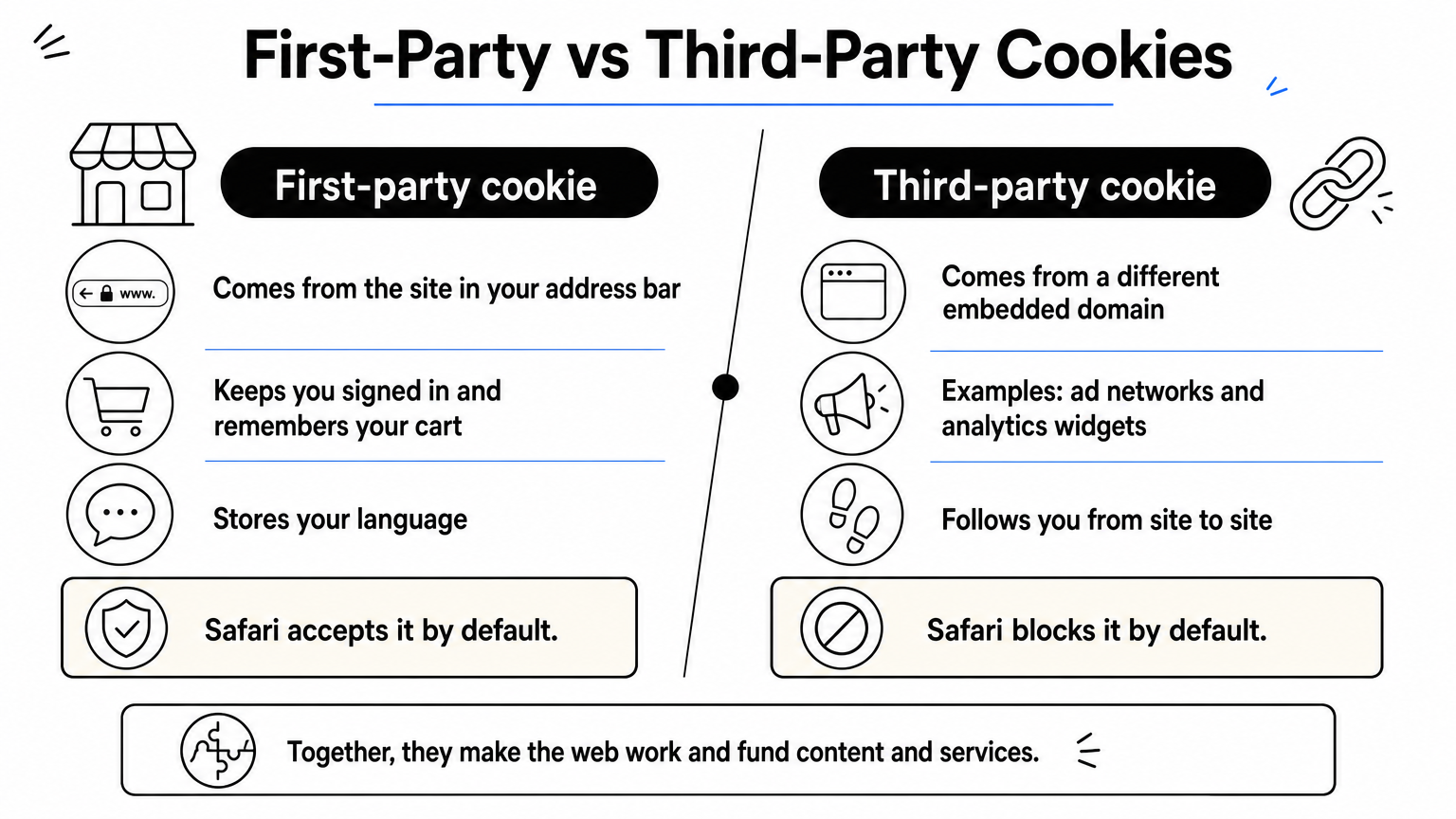
A third-party cookie comes from a different domain embedded in the page, such as an ad network or an analytics widget. These cookies follow you from site to site. Since Safari 13.1, Safari has blocked them by default, which is why advice about "allowing cookies" often confuses the two types.
Only two switches matter, and they do different jobs.
| Setting | Default | What it does |
|---|---|---|
| Block all cookies | Off | Rejects every cookie, first-party included. Many sites break. |
| Prevent cross-site tracking | On | Blocks third-party cookies and limits cross-site tracking. |
Most "first-party cookies not working" problems come from the first row. Block all cookies is the only setting that stops a site from saving its own cookies.
Safari has no switch for allowing first-party cookies, only a switch for blocking all of them.
For everyday browsing, no. Blocking everything breaks logins, shopping carts, and checkout, and it doesn't make you much safer. Safari already blocks cross-site trackers on its own.
If you want more privacy, leave the defaults and use a Private Browsing window. You can also clear a site's data when you finish with it. Use Block all cookies only for short, specific sessions, and turn it off again afterward.
To enable cookies on a Mac, open Safari > Settings > Advanced and deselect Block all cookies. Apple documents the same path in its Safari cookie guide.
On older versions of macOS, this checkbox sits in the Privacy tab instead. If the box was already unchecked, your first-party cookies were never blocked, and Step 3 will help you find the real cause.
On a Mac, one unchecked box in Safari's settings decides whether any site can save its own cookies.
Some school portals, embedded logins, and single sign-on tools need third-party cookies. In that case, open Safari > Settings > Privacy and deselect Prevent cross-site tracking.
Treat this as a temporary change. With it off, advertisers can track you across sites again. Finish the task that needed it, then tick the box again.
On iPhone and iPad, go to Settings > Apps > Safari, scroll to Privacy & Security, and turn off Block All Cookies. The steps are identical on both devices.
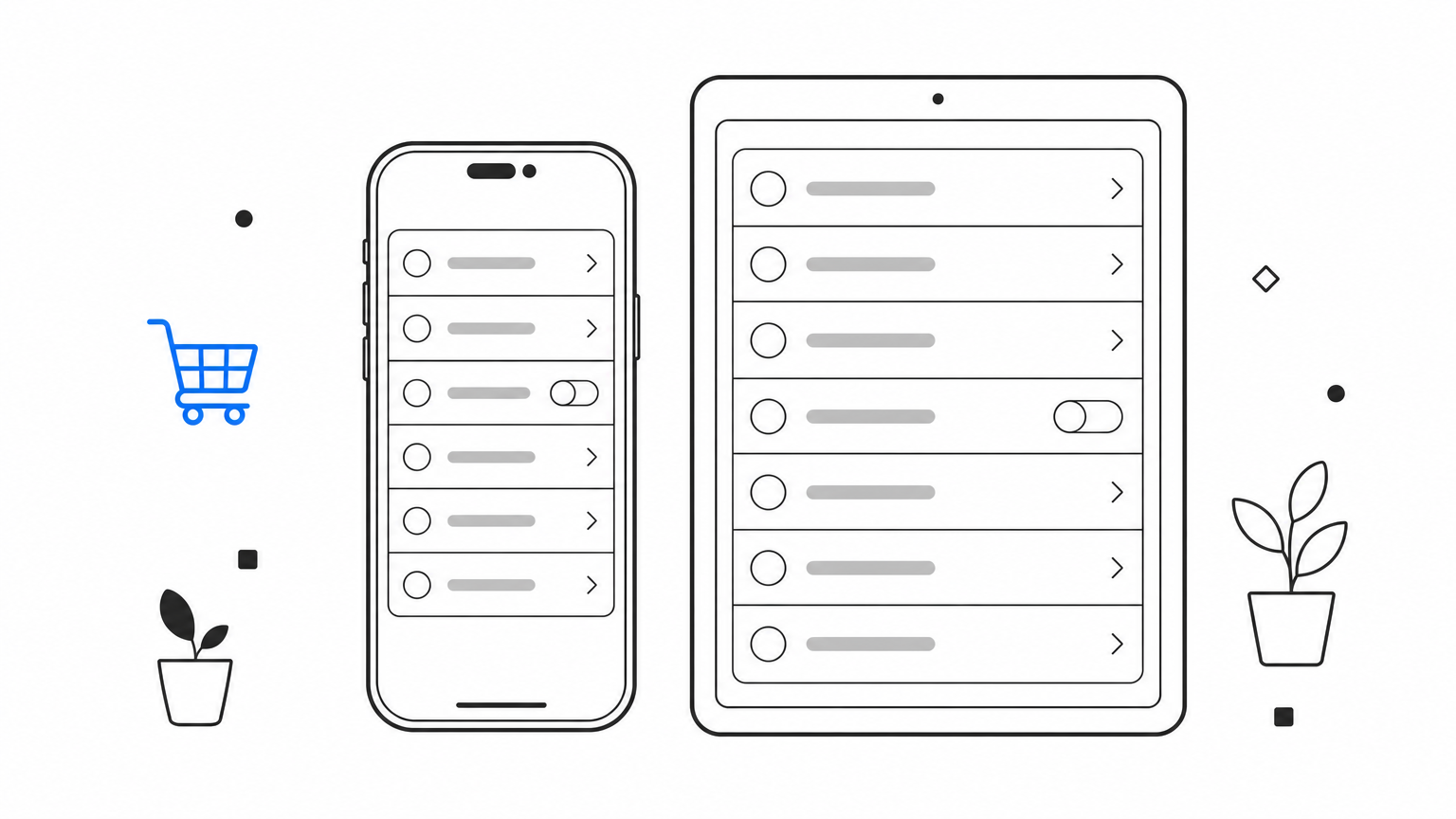
On iPhone and iPad, a gray Block All Cookies toggle is all first-party cookies need.
In the same Privacy & Security section, switch off Prevent Cross-Site Tracking if a site truly requires third-party cookies. The same caution applies as on the Mac. Switch it back on once you finish, because it is the setting that protects you from cross-site tracking.
Test cookies by signing in to a site, closing the tab, and reopening the site. If you're still signed in, first-party cookies work. If you're signed out, work through the causes below.
Add an item to a store's cart, open a new tab, and visit the store again. The item should still be there. You can also check the saved data directly:
If the site appears in the list, Safari is saving its data.
Work down this table from the most common cause to the least.
| Symptom | Likely cause | Fix |
|---|---|---|
| Signed out when you close the window | Private Browsing | Use a normal window. Private tabs delete cookies on close. |
| Site says cookies are disabled | Content blocker or extension | Disable it for that site, then reload. |
| Login loops or odd errors | Corrupt site data | Remove the site in Manage Website Data, then sign in again. |
| Login box inside another site fails | Cross-site iframe | The embedded page counts as third-party. Allow cross-site tracking briefly. |
| Cookie never appears | Bad cookie attributes | Site owners: a Secure cookie sent over plain HTTP is dropped, and a Domain value must match the site. |
| Everything else looks right | Outdated software | Update macOS, iOS, or iPadOS. |
Most cookie failures in Safari come from a blocker, a private window, or stale site data, not from the cookie setting itself.
Safari's Intelligent Tracking Prevention caps cookies written by JavaScript at seven days. Turning cookies on doesn't change that cap, so site owners need to change how the cookie is set.
Analytics and ad tags usually set cookies with JavaScript. Safari treats those as short-lived, even when they are first-party. Cookies set by your server in a Set-Cookie header last longer. Safari can also cap server-set cookies at seven days when they come from a subdomain that resolves through a third-party CNAME or a different IP range than your main site.
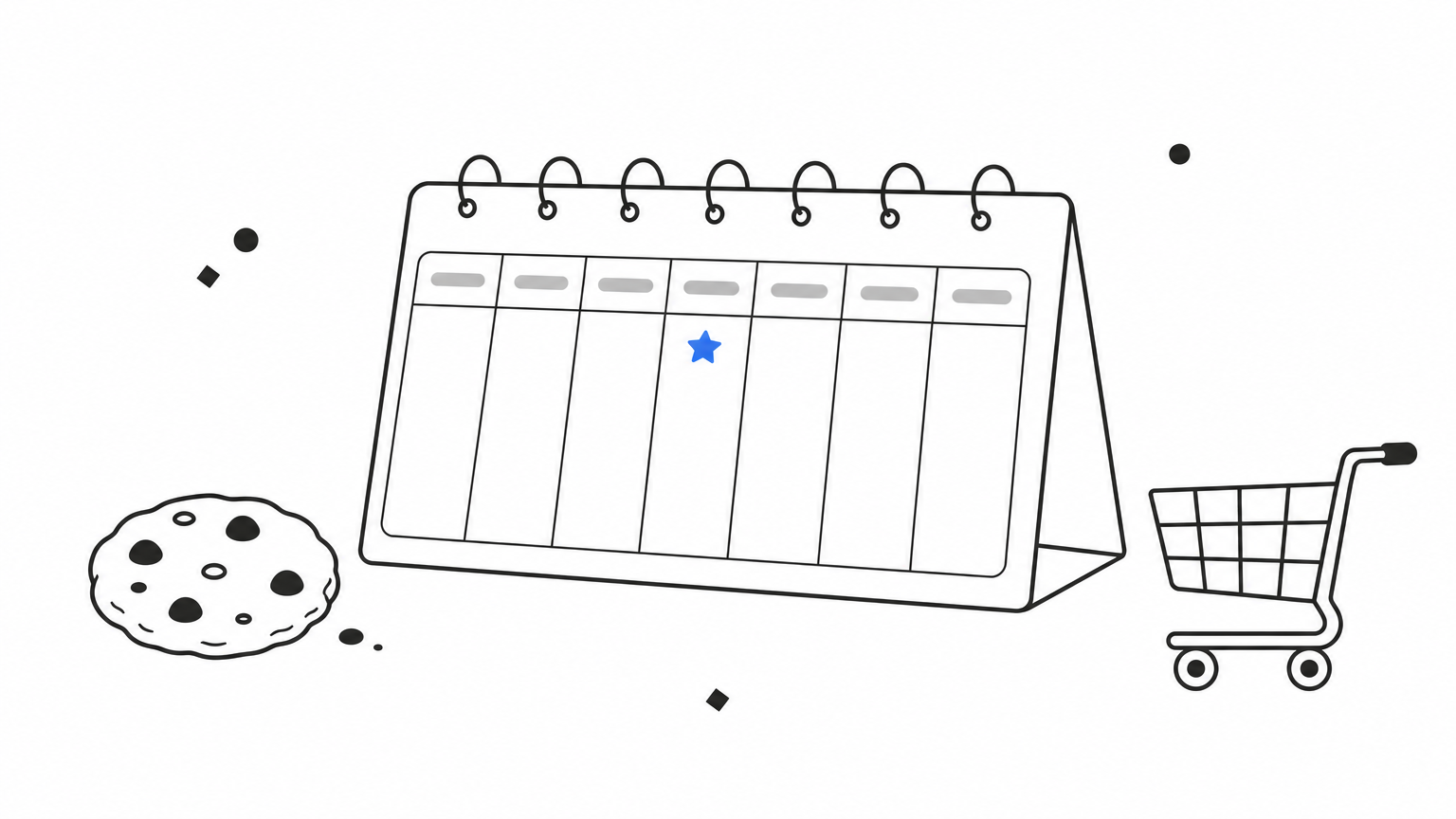
Take a shopper who visits your store on Monday and returns ten days later. With a seven-day cookie, your analytics counts a new visitor. Attribution breaks, and Meta, Google, and Klaviyo lose the connection to the earlier visit.
Set the identifier cookie from your own domain, using a long lifetime:
Set-Cookie: visitor_id=abc123; Max-Age=63072000; Path=/; Secure; SameSite=Lax
Max-Age=63072000 is two years in seconds. Respect your consent rules before setting any identifier.
If you'd rather not change code, Crumble does this for you. It is the cookie agent behind Nostra AI's Edge ID. It extends a customer's tracking identity from 7 days to 2+ years, as a first-party cookie, and recovers lost identities automatically. It works with Meta, Google, Klaviyo, and GA4, and goes live in a day with zero code.
First-party cookies are on in Safari unless Block all cookies is on. Turn that one setting off on your Mac, iPhone, or iPad, test with a login or a cart, and check blockers and private windows if something still fails. Leave Prevent cross-site tracking on unless a specific site demands otherwise.
If you run a store, remember that Safari's seven-day cap matters more than the setting. Server-set, first-party cookies keep your returning customers recognizable. Once your cookies last, make sure the traffic they measure is real. Edge Protect filters AI-powered bad bots in real time, before they reach your site, so your analytics and ad spend reflect actual shoppers.


