Your GA4 numbers look strange. Sessions spike from one country, engagement time drops to zero seconds, and conversion rate sags for no clear reason. Odds are bots are inflating your reports. Left alone, bot traffic in GA4 skews every decision built on that data, from ad budgets to A/B test results.
Here is the short answer. GA4 automatically filters known bots and spiders using the IAB list, but it does not catch most modern bots. To exclude bot traffic in GA4, you identify the suspicious patterns, then filter by IP with internal traffic rules, build exclusion segments, and block the bots before they reach your site. GA4 has no single switch that does it all.
This guide walks through each step. You will learn what GA4 already filters by default and what it misses, how to spot bots in your reports using source, city, and engagement signals, and how to set up filters and segments. We also cover why true blocking has to happen at the edge, which is the approach we use at Nostra AI to keep bots out of analytics entirely.
Before you build any filters, you need to know what Google already does for you. GA4 handles the easy cases and stops there. The gap between those two things is where your bot traffic in GA4 comes from.

GA4 excludes traffic from known bots and spiders without any setup. Google builds that list from its own research and the IAB International Spam and Bots List. You can't turn this filter off, and you can't see how many hits it removed. The Google Analytics help center documents this behavior.
That sounds reassuring, but the list only covers bots that identify themselves. A crawler that announces itself as a bot gets dropped. A crawler that pretends to be Chrome on a Windows laptop does not.
Most of the bot traffic that hurts your reports looks like a normal visitor. It runs JavaScript, loads your GA4 tag, and records a session. Here is how common bot types fare against the default filter:
| Bot type | Filtered by default? | Why |
|---|---|---|
| Search engine crawlers (Googlebot, Bingbot) | Yes | On the IAB list, and most never run your tag |
| Scrapers using headless Chrome | Usually no | They execute JavaScript and mimic real browsers |
| Ghost spam through the Measurement Protocol | No | Hits go straight to your measurement ID and never visit your site |
| Bots on rotating residential proxies | No | No stable IP or user agent to list |
| Click-fraud and ad bots | No | They imitate real sessions from paid campaigns |
These bots inflate sessions, drag down engagement rate, and make conversion rate look worse than it is. They also pollute audiences you may export to ad platforms.
GA4's default filter catches bots that announce themselves, not the ones that pretend to be customers.
Universal Analytics had a checkbox to exclude all hits from known bots at the view level. GA4 has nothing like it. Its data filters only cover internal and developer traffic, so if you search for a way to filter out bot traffic in GA4, you won't find a single setting that does the job.
Filters also work only going forward. Once a bot session is recorded, you can't delete it from historical data. That is why the next four steps combine methods: spot the pattern, hide it in reports, filter what GA4 allows, and stop the rest before it reaches your tag.
Start with evidence. You can't remove what you haven't confirmed, and flagging real customers as bots costs you good data. Pick a date range that looks odd, then compare it against a normal baseline week so you know what healthy traffic looks like for your store.
Open these reports and sort by sessions to find outliers. Most bot traffic in GA4 shows up in one of four places.
| Report path | Red flag |
|---|---|
| Reports > Acquisition > Traffic acquisition | A direct or referral source spiking with near-zero engagement |
| Reports > Demographics > Demographic details | One country or city jumping with no matching ad spend, or many "(not set)" cities |
| Reports > Tech > Tech details | One browser version or screen resolution holding an oversized share of sessions |
| Explore > Free form, with Hostname as a dimension | Hostnames that aren't your own domain |
One odd number proves little. Look for two or three signals of a bot attack together: an average engagement time of 0 seconds, a 100% bounce rate, sessions clustered at 3 a.m. in your main market's time zone, and every visit landing on the same page.
One strange metric is a hint, but several matching ones are a bot.
Ghost spam deserves its own check. If the hostname is not your domain, the hit came through the Measurement Protocol and never touched your site. Write down the source, hostname, city, and landing page of every pattern you find. You will need those details to build segments in Step 2 and to write blocking rules in Step 4.
Segments are the fastest way to filter bot traffic in GA4 reports, because they work on data you already collected. They hide bad sessions from view without touching what GA4 stores. Use the patterns you wrote down in Step 1.
Open Explore, start a blank exploration, and build the segment below. This is the most dependable way to filter out bot traffic in GA4 for past data.
In standard reports, use Add comparison instead. Pick a dimension, set it to exclude, and enter the bot value. It is less flexible than a segment, but it takes ten seconds.
Segments change only your view. The bot sessions stay in GA4, so they still feed audiences, BigQuery exports, and ad platform integrations. A segment cleans a report, not the pipeline behind it.
A segment hides bots from your report, but it never stops them from being counted.
That makes segments a diagnostic tool and a stopgap. Use one to measure how much of your traffic is fake, then move on to the filters in Step 3 so GA4 exclude bot traffic rules apply as data arrives.
Data filters are the only place GA4 lets you remove bot traffic from Google Analytics 4 before it is stored. The catch is scope. They match on IP address, so they only work for bots that come from a stable address or range.
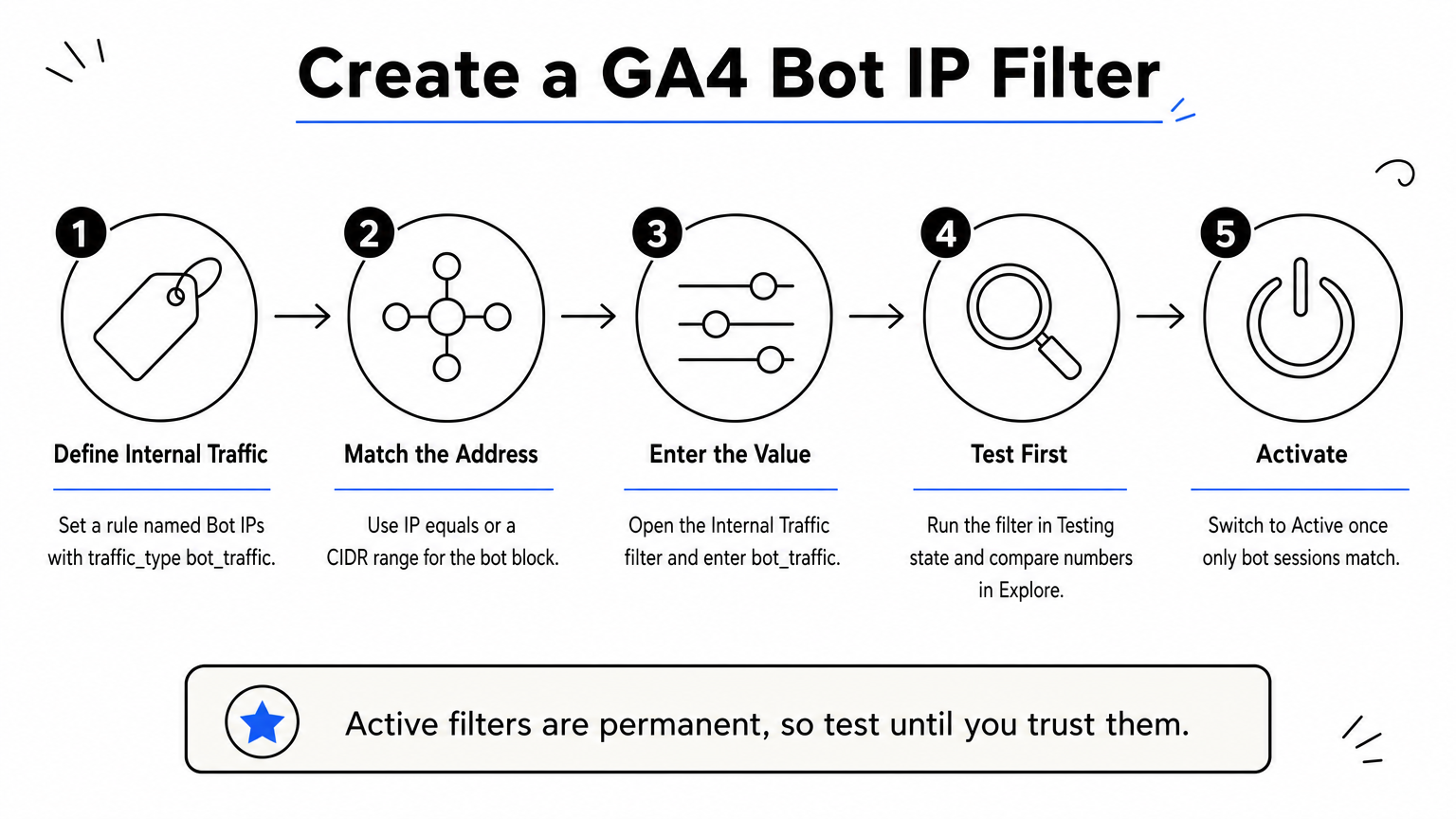
Use the IPs you noted in Step 1. Your server logs or CDN dashboard will confirm them. Then follow these steps:
Set the filter state to Testing first. GA4 keeps the matching events but labels them with the "Test data filter name" dimension, so you can compare filtered and unfiltered numbers in Explore for a few days. If only bot sessions match, switch the state to Active.
An active data filter is permanent, so test it until you trust it.
Active filters drop data for good, and they apply only going forward. GA4 also caps you at 10 data filters per property, which is plenty for a handful of ranges. The bigger limit is technical. Bots on rotating residential proxies change IPs constantly, so an IP rule never catches them. The developer traffic filter, which relies on debug_mode, does nothing for bots either.
Treat this filter as a patch for repeat offenders. To stop the rest, you need to act before the hit ever reaches your GA4 tag.
Filters and segments clean up after the fact. To block bot traffic in Google Analytics 4 for good, you have to stop the request before the page loads. A bot that never receives your HTML never fires your GA4 tag, so it never becomes a session.
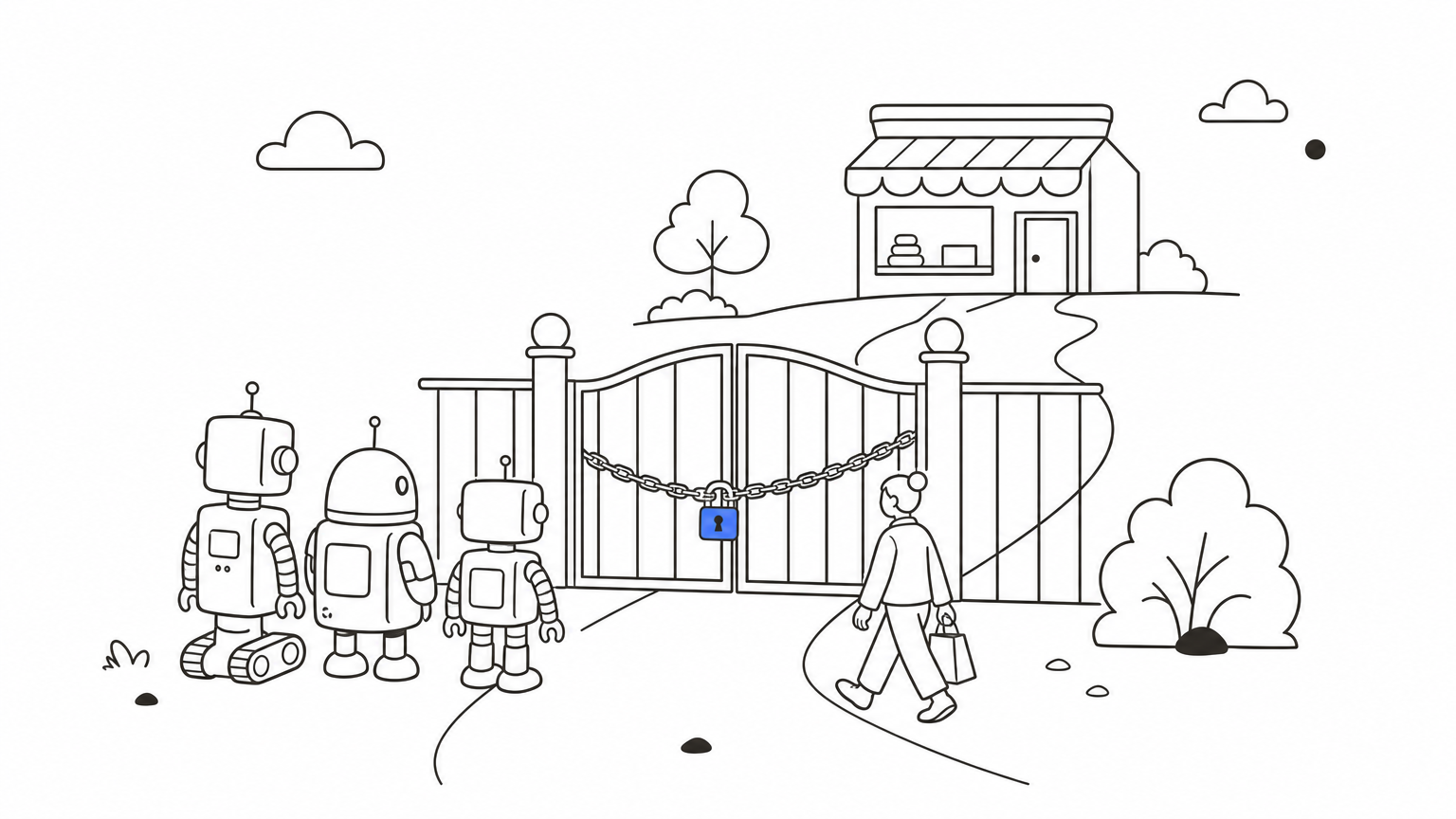
The only bot traffic GA4 can't count is the traffic that never reaches your page.
Start with controls you probably already own. Use the source, ASN, and landing page details from Step 1 to write the rules.
| Layer | What it stops | Limit |
|---|---|---|
| WAF or CDN rules (rate limits, ASN and country blocks) | Obvious scrapers and data center traffic | Manual upkeep, bots shift networks |
| CAPTCHA or challenge on forms and checkout | Fake signups and card testing | Does nothing for page views |
| Rotating your Measurement Protocol API secret (Admin > Data streams > Measurement Protocol API secrets) | Spam hits sent straight to GA4 | Only helps if you control the secret |
Each layer works, but hand-written rules go stale as bots rotate IPs, user agents, and networks. If you rely on them, review your blocklist monthly and check whether the Step 1 red flags have faded.
Automated bot management closes the maintenance gap. Knox, our Edge Protect agent, sits at the edge of your storefront and blocks malicious bots before the page is served. Your GA4 tag never fires for them, so analytics, audiences, and BigQuery exports stay clean. Across our customers it blocks more than 10 billion bots a year.
Setup is a DNS-level change, with no code edits or replatforming. After deployment, give it a week or two, then compare sessions, engagement rate, and conversion rate against your Step 1 baseline. A drop in sessions paired with a rise in engagement rate means the filter is removing fake traffic, not customers.
This is the most reliable way to run a GA4 exclude bot traffic strategy. Filters and segments still help for diagnosis, but blocking fixes the source.
Your GA4 exclude bot traffic routine comes down to four layers: identify the patterns, hide them with segments, filter repeat IPs with data filters, and block the rest before it reaches your tag. Each layer covers a gap the others leave open.
Bots change tactics, so review your reports monthly. Recheck the Step 1 red flags, update your IP ranges, and confirm your baseline engagement rate still holds. Catching a new pattern in week one costs far less than cleaning up a quarter of bad data.
Manual upkeep only goes so far, though. If you want bots stopped before they ever become sessions, see how Edge Protect blocks bad bots in real time and keep only real shoppers in your funnel.


.svg)
