The fastest way to clean up bot traffic in Google Analytics is a four-part routine. First, find the suspicious sessions by looking for near-zero engagement, odd cities and outdated browsers in your GA4 reports. Second, filter those sessions out of your analysis with segments and data filters. Third, stop your tag from firing for obvious automation. Fourth, recheck the numbers every month. Anything GA4 cannot stop has to be blocked before it reaches your site.
GA4 drops known bots and spiders automatically, but that is a list-based filter. A script that loads your page in a headless browser and runs your tag is counted as a session. You cannot switch the filter off, and Google does not show how much it removed. So the spike in direct traffic, the session count that never matches your orders and the conversion rate that sags for no reason all land in the dashboard your team uses to spend money.
This guide walks through each step using the actual GA4 menus. You get a regex pattern and a Google Tag Manager snippet you can copy. Nostra AI protects ecommerce storefronts from bad bots at the edge, so we see what these visits look like before they ever touch analytics. That perspective shapes the order of the steps below.

GA4 excludes known bots and spiders automatically, using Google's own research and the IAB/ABC International Spiders and Bots List. Universal Analytics had a checkbox for this. GA4 has no setting at all, and you cannot see what was removed.
The weakness is that the list only covers bots that announce themselves. Any bot that runs JavaScript and looks like a browser gets counted. Independent tests that sent scripted headless-browser visits to a test site, including visits with a non-browser user agent and visits from data center IP addresses, saw GA4 record them as ordinary sessions.
GA4 removes the bots that identify themselves. The ones that pose as shoppers stay in your reports.
Bots inflate sessions and pageviews and pull engagement rate down. They can also fire key events such as form submits. Take a store with 40,000 monthly sessions and 680 orders, where 6,000 sessions come from one bot cluster.
| Metric | What GA4 reports | Real human visitors |
|---|---|---|
| Sessions | 40,000 | 34,000 |
| Orders | 680 | 680 |
| Conversion rate | 1.7% | 2.0% |
Here 15% of sessions are fake, and the store looks 0.3 points worse on conversion than it is. A paid channel that attracts bots looks like a weak performer, so you may cut a campaign that works. A channel that attracts fake leads looks like a winner, so you may fund one that does not.
Start in Reports > Acquisition > Traffic acquisition and Reports > Tech > Tech details. Bot traffic rarely hides well once you compare it against your normal pattern. Look for these signals.
| Signal | Where to look in GA4 | What bots look like |
|---|---|---|
| Traffic spike | Traffic acquisition | Direct or Unassigned jumps with no campaign behind it |
| Engagement | Traffic acquisition columns | Average engagement time near 0 seconds, engagement rate far below your site average |
| Location | Demographic details, City | One city with hundreds of sessions in a place you do not sell to |
| Browser | Tech details, Browser | One exact browser version, or versions years out of date |
| Screen resolution | Tech details | One unusual resolution, or "(not set)" on every session |
| Hostname | Exploration, Hostname | Sessions on a hostname that is not your domain |
| Landing page | Pages and landing page | One URL taking all the hits, or URLs that do not exist |
Data center cities such as Ashburn, Virginia, and cities that have shown up in many reported GA4 bot spikes, such as Lanzhou, China, are worth a second look when they appear without a reason.
A single odd signal proves nothing, so build one table that shows them side by side.
A bot cluster usually shares three or four traits at once, such as one city, one browser version and 0 seconds of engagement. Write those traits down. You will use them in Step 2.
Visitors who click a link in ChatGPT, Perplexity or Gemini are real people, so do not filter them. They arrive as referrals, and you can group them with a custom channel group using a regex like this:
chatgpt\.com|chat\.openai\.com|perplexity|gemini\.google\.com|copilot\.microsoft\.com|claude\.ai
AI crawlers are different. They generally do not run your GA4 tag, so they rarely show up in GA4 at all. Seeing them requires edge or server-level data.
Confirm a bot by its pattern of traits, never by one odd number.

GA4 has no property-level bot filter, so you remove bots from the analysis instead. In Explore, choose Segments > Create a new segment > Session segment. Add exclusion conditions built from the traits you found: city exactly matches the bot city, browser version equals the suspicious version, average engagement time is under a second.
For ghost spam, add the rule Hostname does not match regex:
^(www\.)?yourdomain\.com$
Replace the domain with yours and add any real subdomains, such as checkout or blog. In standard reports, use Add filter under the report title with an Exclude rule. Neither method deletes anything. They change what you see, and they work on historical data as well.
Data filters remove data permanently as it is collected, but GA4 only offers two types, internal traffic and developer traffic. You can still use the internal traffic one against bots with stable IPs:
Filters are not retroactive, so they only clean data from the moment they go active. Use List unwanted referrals in the same tag settings for spam domains. That setting stops the referrer from being credited. The session itself is still counted, usually as direct.
GA4's own tools hide bots from your analysis. They rarely stop the bots from being counted.
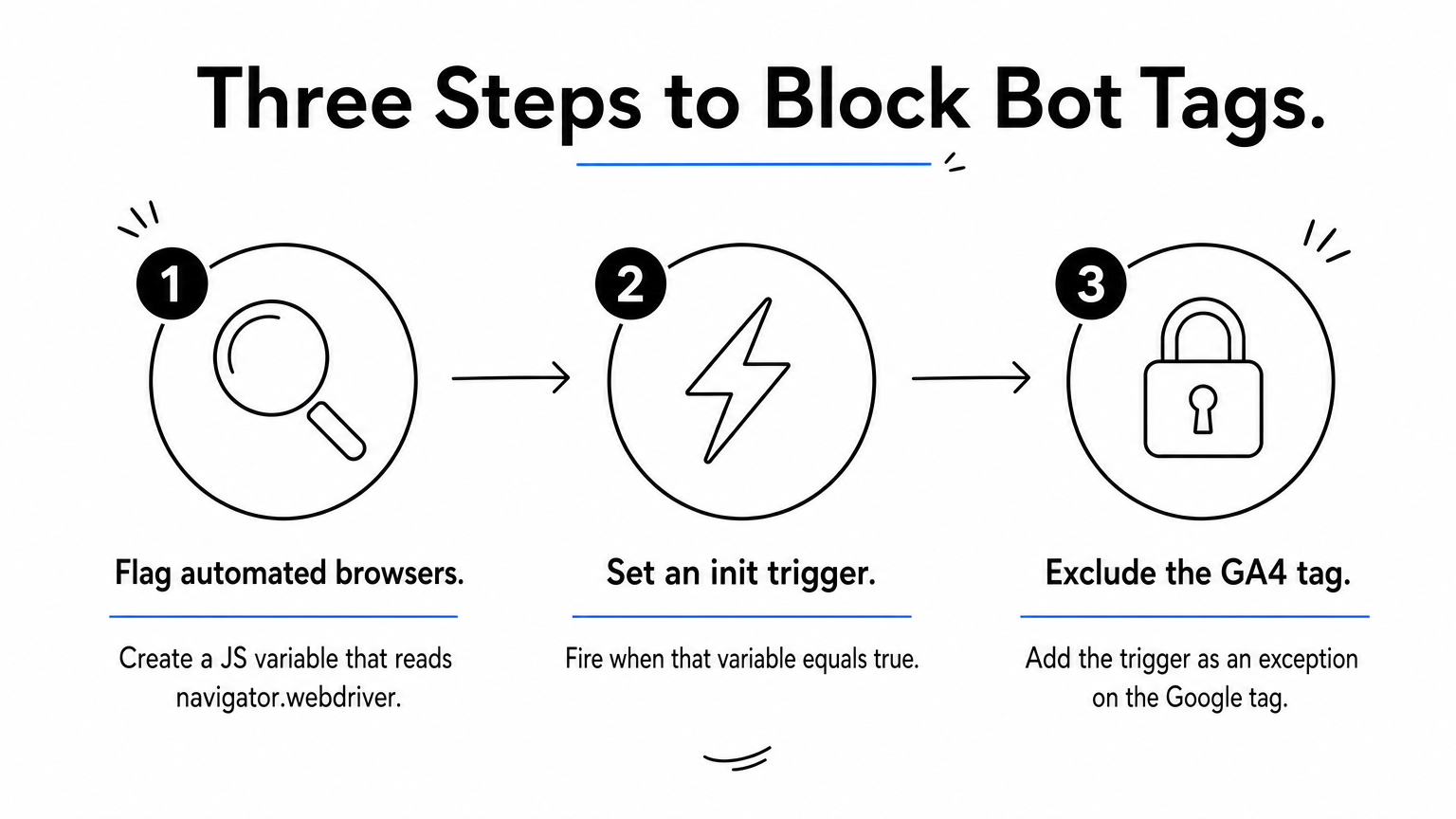
If your site loads GA4 through Tag Manager, you can stop the tag on automated browsers. Most headless browsers set navigator.webdriver to true. Create a Custom JavaScript variable named JS - is webdriver:
function() {
  return navigator.webdriver === true;
}
Then create an Initialization trigger with the condition {{JS - is webdriver}} equals true. Add it as an exception trigger on your Google tag. Visits that match never send data to GA4. This also keeps your own Playwright or Puppeteer test runs out of the reports.
Stealth bots can hide the flag, so treat this as a cheap first layer. It will not stop the careful ones.
Bots that mimic real browsers have to be stopped before the page loads, by rate limits, a web application firewall or a bot management layer. Plain CAPTCHAs add friction for shoppers, so most stores avoid putting them in front of the whole site.
Knox, the bot agent behind Nostra's Edge Protect, does this at the edge. It blocks malicious bot traffic before it can distort analytics or waste ad spend and lets verified crawlers such as Googlebot, ChatGPT and Claude through. It goes live in under a day with no code changes, and there is a 14-day free trial. Because blocked bots never load the page, they never reach GA4, Meta or Google Ads either.
Every bot you block upstream is a bot you never have to filter downstream.
Test before you trust a change. With a data filter in Testing state, use the Test data filter name dimension in an Exploration to see what it would remove, and activate it only when the count is what you expect. After a GTM exception or an edge block, compare sessions, engagement rate and conversion rate for the two weeks before and after. Sessions should fall, and engagement rate and conversion rate should rise. If real human segments such as a whole country or browser vanish, your rule is too broad.
Add an annotation in GA4 on the date of every change so you can explain breaks in the trend later.
Bots adapt, so one cleanup is not enough. Once a month, spend 15 minutes on this checklist:
Treat bot filtering as a monthly habit, because a rule you set once will age as the bots change.
Finding bot traffic in GA4 comes down to spotting clusters of sessions that share the same city, browser, resolution and near-zero engagement. Segments, data filters and a Tag Manager exception clean your reports. Blocking at the edge keeps most bots out of the funnel and your ad platforms entirely. Whatever you set up, check it monthly.
If you would rather not maintain regex and IP lists, Edge Protect filters bad bots in real time before they reach your storefront, so your analytics only counts real shoppers.


.svg)
