The fastest way to use a Shopify speed analyzer is to test three page types (home, collection, and product) in a free tool like Google PageSpeed Insights. Read the Core Web Vitals, find the apps and scripts behind the slowest results, fix the biggest offender first, and retest. It takes four steps, costs nothing, and you can start without a developer.
Most Shopify stores get slow gradually. Each app adds a script, each campaign adds a bigger hero image, and nobody notices until conversion rate slips. A single score from an analyzer doesn't help much. Different tools report different numbers for the same page, and fixing the wrong thing can burn a week with no visible gain.
This guide walks through the process in order. You will learn which numbers matter and which free tools to use. You will also learn how to trace slowdowns to specific apps, what to fix first, and how to confirm the fix worked. We build speed tooling for Shopify storefronts at Nostra AI, so the steps below reflect how slow stores actually get diagnosed.
A Shopify speed analyzer loads a URL from your store, records how fast it renders and responds, and lists the issues behind the numbers. Before you test anything, know which numbers count and which tools are worth your time.
Google's Core Web Vitals are the standard that serious analyzers report. Shopify's own web performance reports use the same thresholds, judged at the 75th percentile of real visits.
| Metric | What it measures | Good | Poor |
|---|---|---|---|
| Largest Contentful Paint (LCP) | Time until the largest element is visible | 2.5 s or less | Over 4 s |
| Interaction to Next Paint (INP) | Delay between a tap or click and the next visual update | 200 ms or less | Over 500 ms |
| Cumulative Layout Shift (CLS) | How much content jumps around while loading | 0.1 or less | 0.25 or more |
On most product pages, LCP is the metric to fix first. The hero image and early scripts compete for the same bandwidth, so every app script that loads early pushes the main image later.
A speed score is only a symptom. The Core Web Vitals and the scripts behind them are the diagnosis.
You do not need a paid tool to get a useful read. These four cover almost everything:
Shopify-specific analyzer apps and browser extensions can help too. Judge them on three things: whether they report Core Web Vitals, whether they name specific apps, and whether they work from a URL alone. An analyzer that installs a script in your theme adds weight to the very thing it measures.
Test your home page, your busiest collection page, and your best-selling product page on mobile, then record the results. Without a baseline you cannot prove that any later change helped.

Mobile comes first because most Shopify traffic arrives on phones and mobile scores are harsher. Use real URLs, not the password-protected preview, and run each page through PageSpeed Insights.
The field data reflects real shoppers, so it is the number that matters. The lab data is a single simulated load, so use it to find causes, not to judge success. Shopify's reports need the Reports staff permission, and your store cannot be in private mode if you want real-user data.
A table like this is enough. The figures are an example of a store that needs work:
| Page | LCP | INP | CLS |
|---|---|---|---|
| Home | 3.4 s | 190 ms | 0.08 |
| Collection | 3.9 s | 240 ms | 0.14 |
| Product | 4.2 s | 310 ms | 0.18 |
Here the product page is the problem. An LCP of 4.2 s is poor, and getting under 2.5 s means cutting 1.7 s, about 40%. INP and CLS are both in the moderate range.
Fix your worst page type first, because that is where shoppers decide whether to buy.
Slow stores almost always trace back to a few third-party scripts from apps and oversized images, not the theme itself. Your job in this step is to name them.

In the PageSpeed Insights report, open the Diagnostics list and look for three audits: reducing the impact of third-party code, reducing unused JavaScript, and the LCP element. The third-party audit lists each domain and how long its scripts block the page. The LCP audit tells you which element is the largest, which is usually your hero or product image.
Domains in that list usually map to apps. A reviews widget, a chat bubble, a loyalty program, and a tracking pixel each load their own files from their own domain.
Open your product page in Chrome, press F12, choose the Console tab, and paste this snippet. It counts requests per outside domain:
const t = {};
performance.getEntriesByType('resource').forEach(r => {
  const h = new URL(r.name).hostname;
  if (h === location.hostname) return;
  t[h] = (t[h] || 0) + 1;
});
console.table(t);
Expect cdn.shopify.com to appear, since Shopify serves your files from it. Treat any other host with a high count as a suspect. Then confirm the suspect by duplicating your theme, switching off one app embed at a time in the theme editor, and retesting. Run each test three times and take the median, because single runs vary.
Also check for leftover code from uninstalled apps. Many apps leave snippets or script tags in theme.liquid after removal, and they keep loading.
The app you forgot you installed is often the one still costing you a second.
Fix in order of impact: the LCP image, then heavy or redundant apps, then layout shift. Stop when each metric reaches the "good" range.
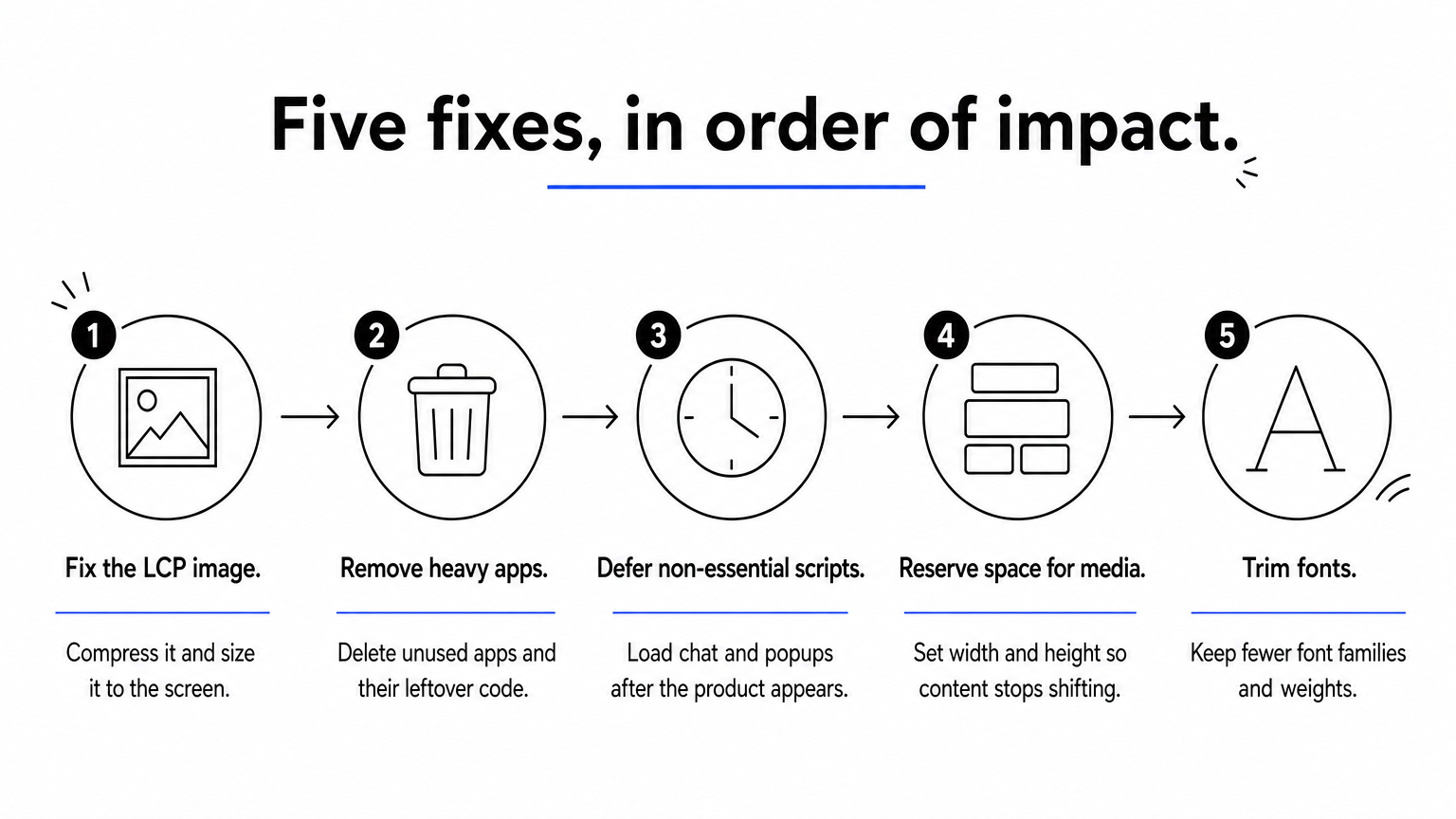
Go back to the example. If the product page LCP is 4.2 s and the hero image fix plus removing two unused apps saves 1.8 s, you land at 2.4 s, just inside the good range.
Manual work has a ceiling. Once images are clean and apps are lean, remaining delay comes from how and where pages are delivered. That is the gap edge delivery fills. Dash, the speed agent behind Nostra AI's Edge Delivery, monitors your storefront and accelerates pages at the edge, with up to 47% faster load times across customer stores. It deploys with a DNS-level change and no code changes, and it typically reaches full acceleration in about two weeks. It works alongside the fixes above, not instead of them.
Retest with the same pages, device, and tool you used for the baseline, then watch real-user data for a few weeks. Only that comparison tells you whether the changes worked.
Run PageSpeed Insights again on the three pages and compare against your log. The lab numbers will move immediately. Field data updates slowly because it reflects a rolling window of real visits, so a good lab score today may not show in your Core Web Vitals for a few weeks.
Shopify's web performance reports help here. Their over-time charts include markers for theme updates and app installs, so you can see which change moved a metric.
Judge your fixes by real-user data over weeks, not by one lab run today.
Speed decays when nobody is watching. Check the Shopify reports monthly, and run a fresh test every time you install an app, change your theme, or launch a campaign page. Keep the baseline table and add a row after each change. If a metric slips back into moderate or poor, the log tells you what changed and when.
Run a Shopify speed analyzer on three pages, read the Core Web Vitals, trace slowdowns to specific apps and images, fix the biggest first, and retest with real-user data. That loop is the whole method, and it works with free tools.
One more thing affects how much you can trust your own numbers. Bot traffic inflates sessions and muddies conversion data, which makes speed gains harder to read. If that sounds familiar, see how Edge Protect screens AI-powered bots before they reach your storefront.


.svg)
