To raise your Google page speed Shopify score, test your four most important pages in PageSpeed Insights, remove the apps and scripts you don't need, fix your hero image and theme code, and then retest against real-user data. Do the steps in that order. Third-party code and one oversized image cause most of the damage, and speed apps or optimization services only pay off once that groundwork is done.
The problem is that the report is noisy. You run a test, see a red 38 on mobile, and scroll through twenty warnings, half of which describe things Shopify already handles. Apps promise one-click fixes. Freelancers promise 90+ scores. Then you rerun the test and the number moves by eight points without a single change.
This guide walks through the process in five steps: how to read the score, how to measure a baseline, how to cut app weight, how to fix images and theme issues, and how to choose between apps, services, and edge tools. Nostra AI speeds up storefronts for more than 300 ecommerce brands, so the advice comes from watching what actually moves Core Web Vitals on Shopify.
Your PageSpeed Insights score is a simulation of one page load. It is a diagnostic tool, not a verdict on your store. The number Google uses to assess your Core Web Vitals comes from real visitors, and it sits above the score in the report. Know which one you're reading before you change anything.
PageSpeed Insights shows two different data sets. The top section, which describes what your real users experience, is field data from the Chrome User Experience Report, a rolling 28-day window of actual Chrome visits. The lower diagnostics section is Lighthouse lab data: one simulated load on a throttled mobile connection with a slowed-down CPU.
The 0 to 100 score comes only from the lab run. Lighthouse weights Total Blocking Time at 30%, Largest Contentful Paint at 25%, Cumulative Layout Shift at 25%, and First Contentful Paint and Speed Index at 10% each. That is why one heavy script can cost you 20 points. Run the same URL three times and expect a spread of several points, so treat any single result as a range.
Google's thresholds for the three Core Web Vitals are fixed. A page passes only when all three are rated good for at least 75% of visits. Use this table as your target sheet.
| Metric | What it measures | Good | Needs improvement | Poor |
|---|---|---|---|---|
| Largest Contentful Paint (LCP) | Loading speed of the biggest visible element | 2.5 s or less | 2.5 to 4 s | Over 4 s |
| Interaction to Next Paint (INP) | Responsiveness to taps and clicks | 200 ms or less | 200 to 500 ms | Over 500 ms |
| Cumulative Layout Shift (CLS) | Unexpected movement while loading | 0.1 or less | 0.1 to 0.25 | Over 0.25 |
| Lab performance score | Lighthouse composite | 90 to 100 | 50 to 89 | 0 to 49 |
INP replaced First Input Delay in March 2024, and it cannot be measured in a lab run. Lighthouse uses Total Blocking Time as a stand-in, so a bad INP in your field data usually means too much JavaScript. Our advice is to set a realistic goal for a Shopify store: passing field data and a mobile lab score somewhere between 60 and 80. A 95 reached by delaying your pixels and disabling features is worse than a 70 that keeps your tracking and checkout intact.
A passing field report with a lab score of 70 beats a 95 built by switching features off.
Shopify covers most of the infrastructure work, so you can skip a large share of the generic warnings. Third-party scanners often tell you to add a CDN or turn on compression. Those suggestions don't apply here, because the platform already provides:
What is left is what you control: your theme, your apps, your tag manager, and your media. Those four are the focus of the remaining steps, and they are the only realistic source of a Google page speed Shopify improvement. Shopify documents the same split on its own web performance page.
Test your homepage, one collection page, your best-selling product page, and the cart, on mobile, and write the results down before you touch anything. Without a baseline you cannot tell whether a change helped or whether the score just wobbled.
Different templates fail for different reasons. A homepage usually fails on a heavy hero and too many sections, a product page on apps like reviews and upsells, and a collection page on image count. Here is how to use PageSpeed Insights properly:
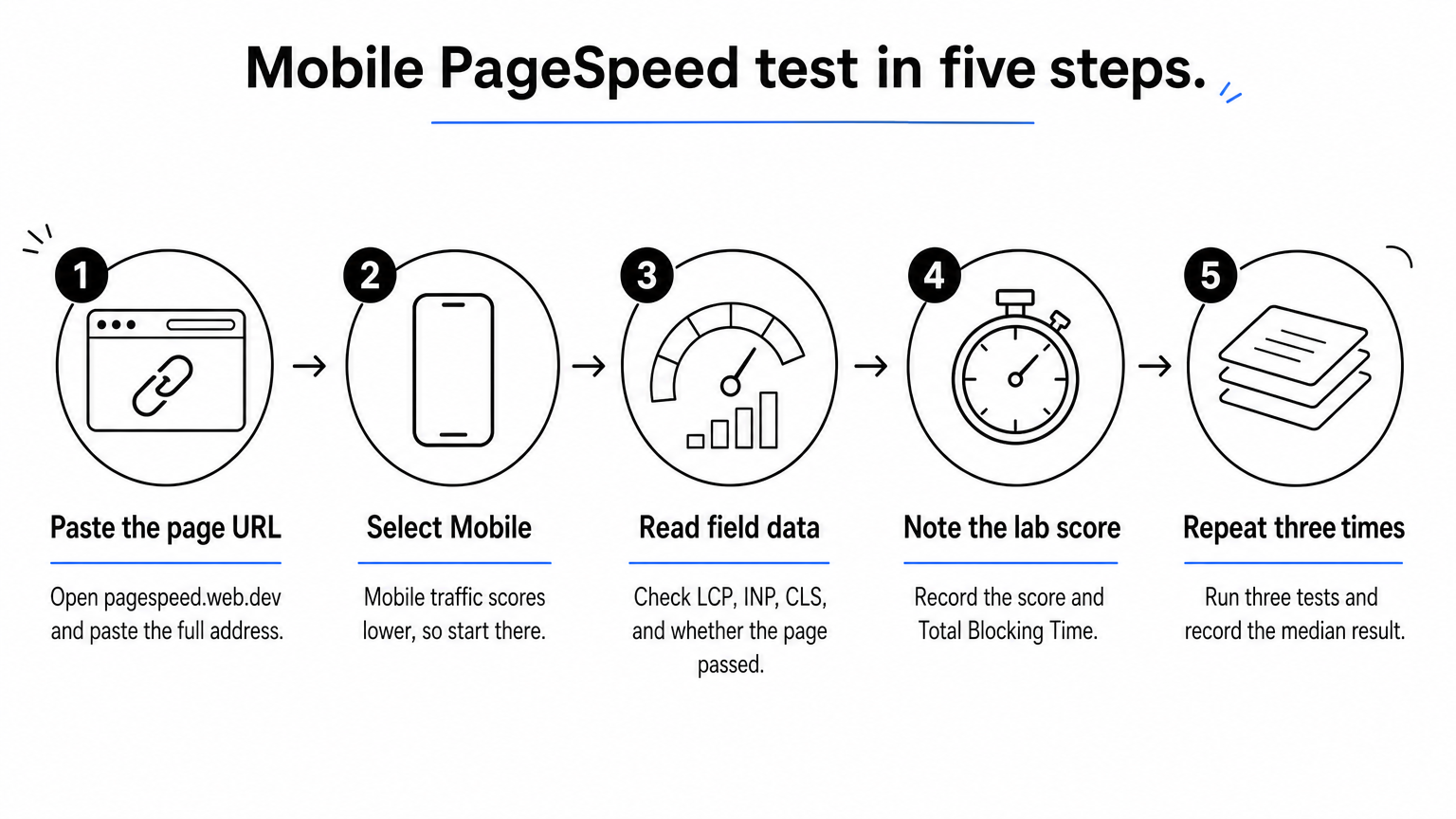
If a page shows no field data, switch to the origin-level view, which aggregates your whole domain. Google Search Console's Core Web Vitals report groups similar URLs and is a good second source. Keep a log you can paste into a spreadsheet:
Page | Date | Mobile score | LCP | INP | CLS | TBT | Field assessment
Home | 2026-10-13 | 41 | 4.8 s | 310 ms | 0.18 | 1,450 ms | Failed
Collection | ...
Product | ...
Cart | ...
The "Diagnose performance issues" section lists dozens of audits. Most Shopify problems fall into a handful, and each one maps to a step below. Use the table to decide what deserves your time.
| PageSpeed audit | Usual Shopify cause | Where to fix it |
|---|---|---|
| Reduce unused JavaScript | Apps, tag manager, theme features | Step 2 |
| Reduce the impact of third-party code | Pixels, chat, reviews, popups | Step 2 |
| Largest Contentful Paint element | Hero image or first product image | Step 3 |
| Properly size images | Oversized uploads | Step 3 |
| Image elements without explicit width and height | Custom code or app-injected images | Step 3 |
| Avoid large layout shifts | Late app content, web fonts | Steps 2 and 3 |
| Enable text compression, use a CDN, cache lifetimes | Already handled by Shopify | Ignore |
Work from the top of the list down. A fix that clears a failing LCP is worth more than ten fixes to green audits.
If your store suddenly feels slow and nothing changed on your side, check Shopify Status before you start editing. Then test from another network and device to confirm the slowdown is not local.
If the slowness is steady rather than sudden, it is almost certainly your own code. A recently installed app, a new tag, or a heavier banner is the usual cause, so retrace what changed in the last few weeks.
Remove or disable every app and tag that cannot justify its cost, because third-party code is the biggest lever for Google page speed on Shopify and the one most stores ignore. Each app can add JavaScript, CSS, and extra network requests to every page, whether or not it is visible.
List every installed app and ask one question: does this directly produce revenue or protect it? Keep reviews, subscriptions, and search if they earn their place. Drop the countdown timer you tried once, the three popup tools, and the analytics app that duplicates another.
To measure each app's cost, open your theme editor, go to App embeds, and switch off one embed at a time. Retest the product page after each change. The PageSpeed audit "Reduce the impact of third-party code" also ranks domains by main-thread time, which tells you where to start.
Keep an app only if you can name the revenue it produces or the risk it removes.
Uninstalling an app does not always remove its code from your theme. Old snippets, script tags, and CSS files keep loading and often return 404 errors that slow rendering. Duplicate your theme first and edit only the copy.
In the code editor, search for the app's name and its domain. Check theme.liquid, the snippets folder, and assets. A leftover usually looks like this:
{% render 'old-reviews-widget' %}
<script src="https://cdn.example-app.com/widget.js"></script>
Delete lines only when you are sure the app is gone. If you are not sure, ask the app developer for removal instructions, since they know which files they added.
Open Google Tag Manager or your tag list and remove anything that no longer reports to an active account. Old Facebook pixels, abandoned heatmap tools, and test tags are common offenders. Fewer tags means less main-thread work and a better INP.
Be careful with delaying. Pushing your purchase and ad pixels to load late can make the lab score jump, but it can also drop conversion events and distort attribution. Removing a tag is safe, delaying a conversion pixel is a trade-off, so only delay scripts that don't feed your ad platforms, such as chat widgets and heatmaps.
Make the largest visible image load first, size every image correctly, and trim what the theme loads by default. Together these changes fix most failing LCP and CLS results on Shopify, and they are the changes you can control without an app.
On most homepages the LCP element is the hero image. On product pages it is the first product photo. Themes often lazy-load every image by default, which delays the very image Google is timing. Shopify's image_tag filter lets you set the first image to load eagerly and with high priority:
{{ section.settings.hero_image
  | image_url: width: 1600
  | image_tag:
    widths: '400, 800, 1200, 1600',
    sizes: '100vw',
    loading: 'eager',
    fetchpriority: 'high'
}}
Use this only for the single image above the fold. Every other image should keep its lazy loading. If the hero is a video, give it a lightweight poster image and avoid autoplay on mobile, since a large video file will almost always become your LCP element.
Upload images no larger than the theme needs. For most themes that is about 2000 pixels on the longest edge, so check your theme's documentation. A 4000-pixel photo displayed at 800 pixels wastes bandwidth even though Shopify's CDN resizes it for delivery. Compress before uploading with a tool such as Squoosh, and keep JPG for photos and PNG for graphics that need transparency.
Layout shift mostly comes from content that appears after the page paints. The image_tag filter outputs width and height attributes automatically, which reserves space. For app blocks, announcement bars, and review widgets, set a minimum height in CSS so the page doesn't jump when they load. Custom fonts cause a smaller shift, so set a swap behavior:
{{ settings.type_body_font | font_face: font_display: 'swap' }}
Check the theme itself. Shopify's own Online Store 2.0 themes and the Horizon family are built for performance, while older or heavily customized themes often carry unused features. Three changes deliver the most:
If your theme has page transitions or animations, compare your scores with them on and off. Animations can cost more than they are worth.
Fix the basics yourself first. Then choose outside help based on what is still failing: an app for simple image and loading controls, an optimization service for theme code you can't change, or an edge platform when you have no engineering capacity. Here is how the four routes compare.
| Option | Best for | What it fixes | Main risk |
|---|---|---|---|
| Manual fixes (Steps 2 and 3) | Every store, always first | App bloat, images, theme sections | Takes time and some Liquid |
| Speed optimizer app | Stores without a developer | Lazy loading, image handling, script control | Adds its own script, can break tracking or cart |
| Optimization service or Shopify Partner | Custom themes, complex stores | Theme code, render-blocking assets, app conflicts | Scope creep, score-chasing promises |
| Edge delivery platform | Brands without engineers | Delivery and caching at the edge, no theme changes | Does not remove apps you have installed |
A speed optimizer app can lazy-load images, defer scripts, and compress media with a few toggles. That helps, but remember that the app is itself third-party code that runs on every page. Judge it by field data and by whether checkout and tracking still work, not by the lab score alone.
Test it properly. Retest your baseline pages with the app on and off, then place a test order and check that your purchase event reaches your analytics. Apps that boost scores by deferring everything can quietly hide revenue from your ad platforms.
Page speed optimization services for Shopify are worth paying for when the bottleneck is theme code, such as render-blocking assets, a bloated custom build, or conflicts between several apps. If you use a free Shopify theme, Shopify Support can help with basics. For a third-party theme, contact the theme developer, a Shopify Partner, or a performance specialist. Before you sign, ask:
Be wary of anyone who guarantees a 90+ score for a flat fee. Those scores are usually reached by disabling features or delaying essential code, and the cost shows up later as broken apps and missing analytics data.
An edge platform improves how your pages are delivered instead of rewriting your theme. Nostra AI's Dash agent works this way: you make a DNS-level change on day 1, the agents observe your store during days 2 to 14, and optimization then runs automatically with no code changes, replatforming, or engineering hours. Across more than 300 brands, results include up to 47% faster load times and roughly a 3% expected revenue lift.
Be realistic about the limit. Edge delivery speeds up what your store serves, but it won't uninstall an app or shrink an oversized hero. That is why the order matters: clean up first, then add delivery gains on top.
Retest the same four pages under the same conditions, wait for field data to catch up, and then set a routine so new apps and edits don't undo your work. A fast store drifts slow again unless somebody watches it.
The lab score responds immediately, so rerun the three-run median on each page right after a change. Field data lags, because it is a 28-day rolling window. Expect real-user numbers to move gradually over several weeks and don't judge a change after two days.

Compare against your baseline log, not against memory. Track the metric you set out to fix, such as LCP on the product page, and check that no other metric got worse. A drop in CLS that comes with a spike in blocking time means a fix traded one problem for another.
A faster store should show up in conversion rate and revenue per visitor, so track those by device alongside the scores. Compare mobile conversion rate for the weeks before and after your changes, and account for promotions and seasonality.
Clean traffic matters here. Bots inflate sessions and drag conversion rate down, which can hide a real speed gain or make a bad week look worse than it was. Filter them out before you judge results, whether through your analytics filters or a bot protection layer.
If your traffic data is polluted by bots, you cannot tell whether a faster store is selling more.
Most slowdowns come back through small decisions: a new app, a bigger banner, a freshly added tag. Build a short routine around them:
Assign one person to own the log. Whoever installs an app should also own the retest.
A good Google PageSpeed result on Shopify comes from a short list of habits: measure real-user data, strip out apps and tags that don't earn their weight, load your hero image first, and bring in an app, a service, or an edge tool only for what is still slow. Chase passing Core Web Vitals, not a perfect 100.
Once your store is fast, make sure the traffic you measure is real. Bots distort sessions, conversion rate, and ad spend, which makes every speed test harder to interpret. Edge Protect filters bad bots in real time, before they reach your site, so you can see how your faster pages perform with actual shoppers.


.svg)
