
To enable first party cookies in Chrome, open Settings, go to Privacy and security, then Third-party cookies. Make sure none of the options blocks all cookies. Chrome has no separate first-party switch. Sites can set their own cookies unless you block all cookies, add a site-level block, or run Chrome under an admin policy. Even "Block third-party cookies" leaves first-party cookies working.
The confusion is easy to understand. You search Chrome's settings for a first-party toggle and find only a page about third-party cookies. Meanwhile a site tells you to "enable cookies" and your settings look fine. Older Chrome versions had a "Block all cookies" option and a per-site eye icon, and the newer layout moved things around. Most advice online still describes the old screens.
This guide walks through the current Chrome settings in three steps: check the main setting, allow specific sites, and test that cookies are really being saved. You will also see how first-party and third-party settings differ. Nostra AI builds first-party tracking tools for ecommerce stores that help recognize returning visitors.
First-party cookies are small files that the website in your address bar saves in your browser. Chrome lets you restrict third-party cookies, but first-party cookies stay allowed unless you block all cookies or a site-specific rule says otherwise.
A first-party cookie comes from the domain you are visiting. It keeps you logged in, remembers your cart, and stores preferences such as language. A third-party cookie comes from a different domain embedded in the page, such as an ad network or a widget. When a guide says "enable third-party cookies," it means letting those outside domains save data while you browse other sites.
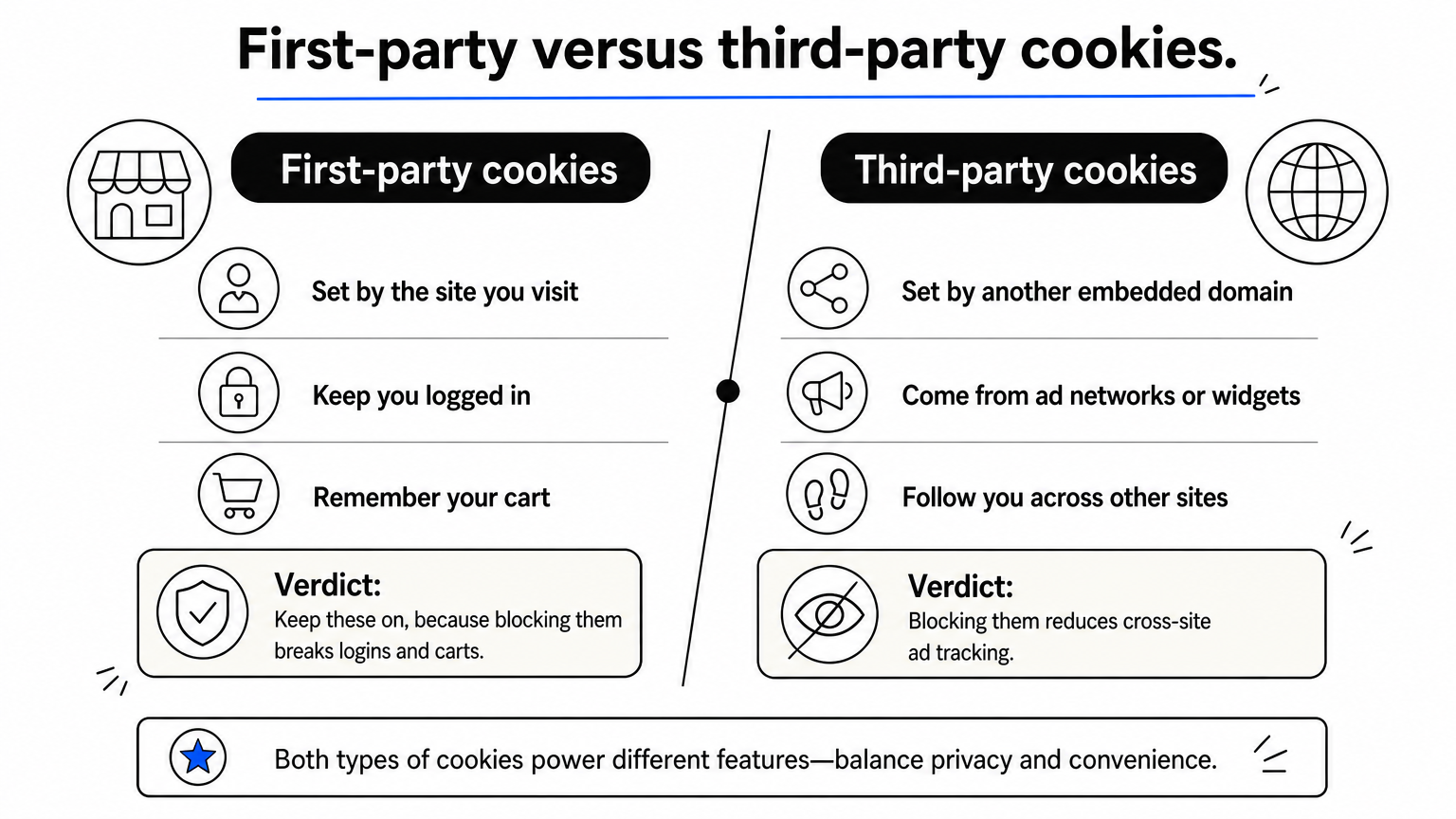
The difference matters because most people want the first kind and can do without the second. Blocking third-party cookies reduces cross-site ad tracking, while blocking first-party cookies breaks logins and shopping carts.
The table shows how Chrome's cookie options affect each type. The option names can vary slightly by version.
| Chrome setting | First-party cookies | Third-party cookies |
|---|---|---|
| Allow third-party cookies | Allowed | Allowed |
| Block third-party cookies in Incognito (default) | Allowed | Blocked in Incognito only |
| Block third-party cookies | Allowed | Blocked |
| Block all cookies (older versions or admin policy) | Blocked | Blocked |
| Site on an allow list | Allowed for that site | Allowed on that site |
Chrome has no first-party toggle, so "enabling" them means removing whatever blocks them.
Go to Settings, then Privacy and security, then Third-party cookies. Pick any option except one that blocks all cookies, and your first-party cookies are on.
These steps work on Windows, Mac, Linux and ChromeOS:
You can also paste chrome://settings/cookies into the address bar to jump straight to this page. Chrome saves the change immediately, so there is no Save button. Reload any page that was failing and try again.
On Android, open the Chrome app, tap More, then Settings, then Site settings, then Third-party cookies. Pick Allow third-party cookies or one of the blocking options. First-party cookies stay allowed with any of them.
On iPhone and iPad, Chrome's cross-site cookie control lives in the iOS Settings app under Chrome, as the Allow Cross-Website Tracking switch. That switch concerns cross-site cookies, not the first-party kind, so you rarely need to touch it for a site to work.
To allow first party cookies for one site only, add that site to Chrome's allow list on the Third-party cookies page. This is the right fix when you block cookies broadly but one site breaks, such as a login portal or checkout that depends on a partner domain.
Open the same page as in Step 1 and scroll to Sites allowed to use third-party cookies. Click Add, type the address, and confirm. Chrome accepts two formats:
example.com
[*.]example.com
The first covers only that exact domain. The second covers the domain and all its subdomains, so [*.]example.com also covers shop.example.com and login.example.com. Use the second form when a service splits its login across subdomains.
Keep in mind that this list governs third-party cookies on that site. If you only block third-party cookies, a site's own first-party cookies already work, and you do not need an entry. If you see the site in a block list on the same page, remove it using the three-dot menu next to its name.
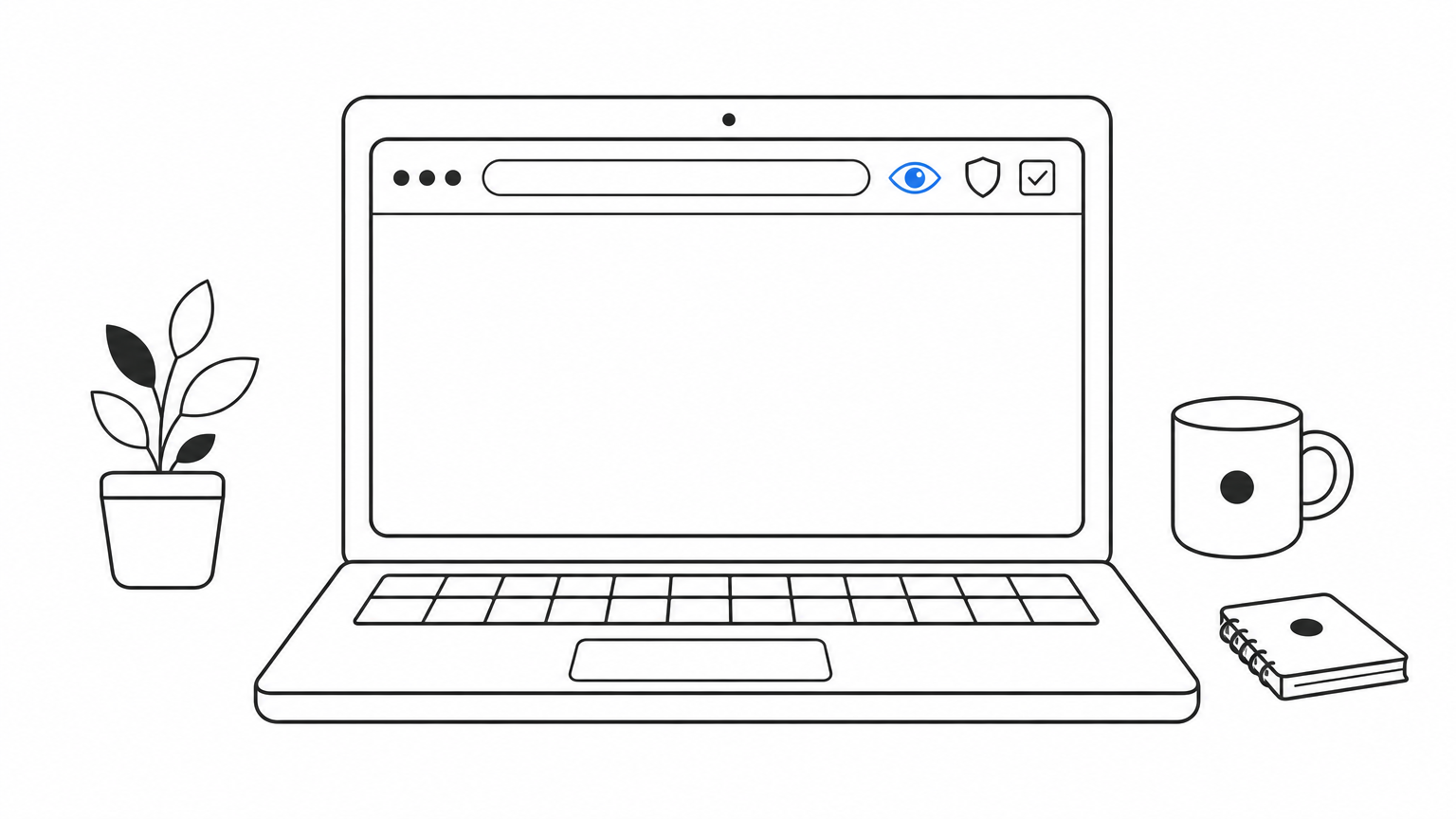
When Chrome blocks third-party cookies on a page, it can show an eye icon at the right end of the address bar. Click it to see the block and choose to temporarily allow third-party cookies for that site. The permission expires on its own, which makes it a safe way to test whether cookies are the problem.
For longer-lived changes, click the site information icon at the left of the address bar. Open the cookies or site settings entry from there to see what the site has stored and which permissions it has.
Use an allow list for the one site that breaks, rather than loosening cookie rules for the whole browser.
Open Chrome's developer tools and check whether the site has saved cookies under its own domain. If it has, first-party cookies are working. If not, one of the blockers below is usually the cause.
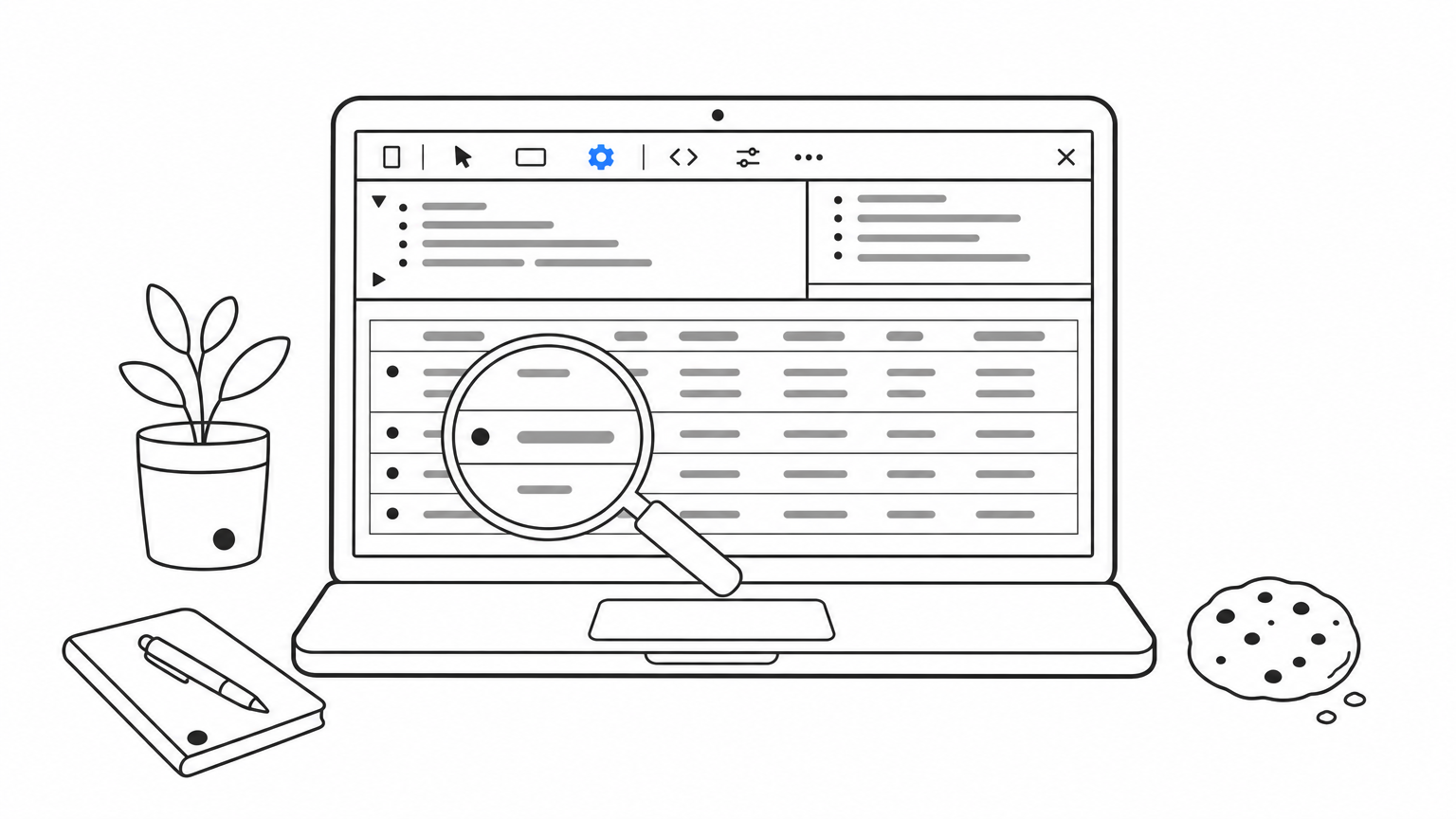
Rows listed under the same domain as the address bar are first-party cookies. If the list is empty after you log in or add something to a cart, something is still blocking them. Some sites set cookies only after you accept a consent banner, so accept it first.
Work down this table from top to bottom. Each cause is quick to rule out.
| Cause | How to check | Fix |
|---|---|---|
| Incognito window | Look for the Incognito icon | Cookies are erased when all Incognito windows close. Use a normal window. |
| Clear on close setting | Search "close all windows" in Chrome settings | Turn off clearing cookies and site data on exit. |
| Privacy extension | Disable extensions one by one | Allow the site in the extension or remove it. |
| Admin policy | Open chrome://policy |
On a work or school device, ask your IT team. |
| Site on a block list | Check the lists under Third-party cookies | Remove the site from the list. |
If the Application tab shows no cookies for the site, the blocker is almost always an extension, a policy or an exit rule.
Keep first-party cookies on for nearly every site you use. Blocking third-party cookies while allowing first-party ones gives most people the best balance of privacy and convenience.
With first-party cookies off, every site treats you as a new visitor. You log in again each time, and carts empty out. First-party cookies mostly serve the site you chose to visit, while third-party cookies are the ones that follow you across sites. So allow first-party, block third-party is a good default. Add exceptions only for sites that break.
If you run an online store, your visitors' browser settings are only part of the picture. Browsers such as Safari also cap how long some first-party cookies live, so a returning shopper can look like a stranger after a week. Nostra AI's Crumble agent (Edge ID) supports first-party tracking on your own domain and extends cookie life from about one week to 2+ years. How long a cookie lasts, and whether a visitor is recognized, still depends on consent, browser restrictions and cookie settings. It works with Meta, Google, Klaviyo and GA4.
Your settings decide whether first-party cookies work for you. The site and the browser decide how long they last.
Chrome treats first-party cookies as allowed by default. Open Settings, then Privacy and security, then Third-party cookies. Pick any option that does not block all cookies. Add a site to the allow list if it breaks, then confirm in the Application tab that cookies are saved. If they still fail, check Incognito, extensions and admin policies before anything else.
If you run a store, cookies are only as useful as the traffic behind them. Bots that inflate sessions and distort analytics make even well-set cookies less reliable. See how Edge Protect filters bad bots before they reach your site, so the shoppers your cookies recognize are real ones.


