Every extra second your store takes to load costs you sales, and Shopify's own data shows 100ms of speed is worth 3.5% in conversion. If you searched for ways to fix shopify loading speed problems, you already know the pain: slow product pages, a checkout that stutters on mobile, and a bounce rate that keeps creeping up while your ad spend stays flat. Google and your customers both punish slow sites, and Shopify's flexibility with apps and themes makes it easy to end up bloated without realizing it.
The good news is that speeding up a Shopify store is a solvable problem once you know where the time actually goes. Most stores lose seconds to unoptimized images, too many third-party scripts, and render-blocking code, not to some mysterious platform limitation. Knowing how to speed up your shopify website starts with measuring the right things before you change anything, so you fix what's actually slow instead of guessing.
This guide walks through the practical steps: auditing your current speed, trimming apps and scripts that drag down load times, optimizing images and code, and deciding when automated edge tools make more sense than manual fixes. We work with this exact problem daily at Nostra AI, helping ecommerce brands cut load times without touching a single line of code, so the recommendations here come from what actually moves the needle, not theory.
Shopify's core infrastructure is fast. The platform runs on a global CDN and Shopify handles server response times well out of the box, so when your store loads slowly, the bottleneck almost always sits somewhere you added yourself. Shopify loading speed comes down to five layers stacking on top of each other: your theme's code, the apps you've installed, unoptimized media, third-party tracking scripts, and how well all of that renders on a mobile connection. Each layer adds milliseconds, and milliseconds add up to seconds fast.
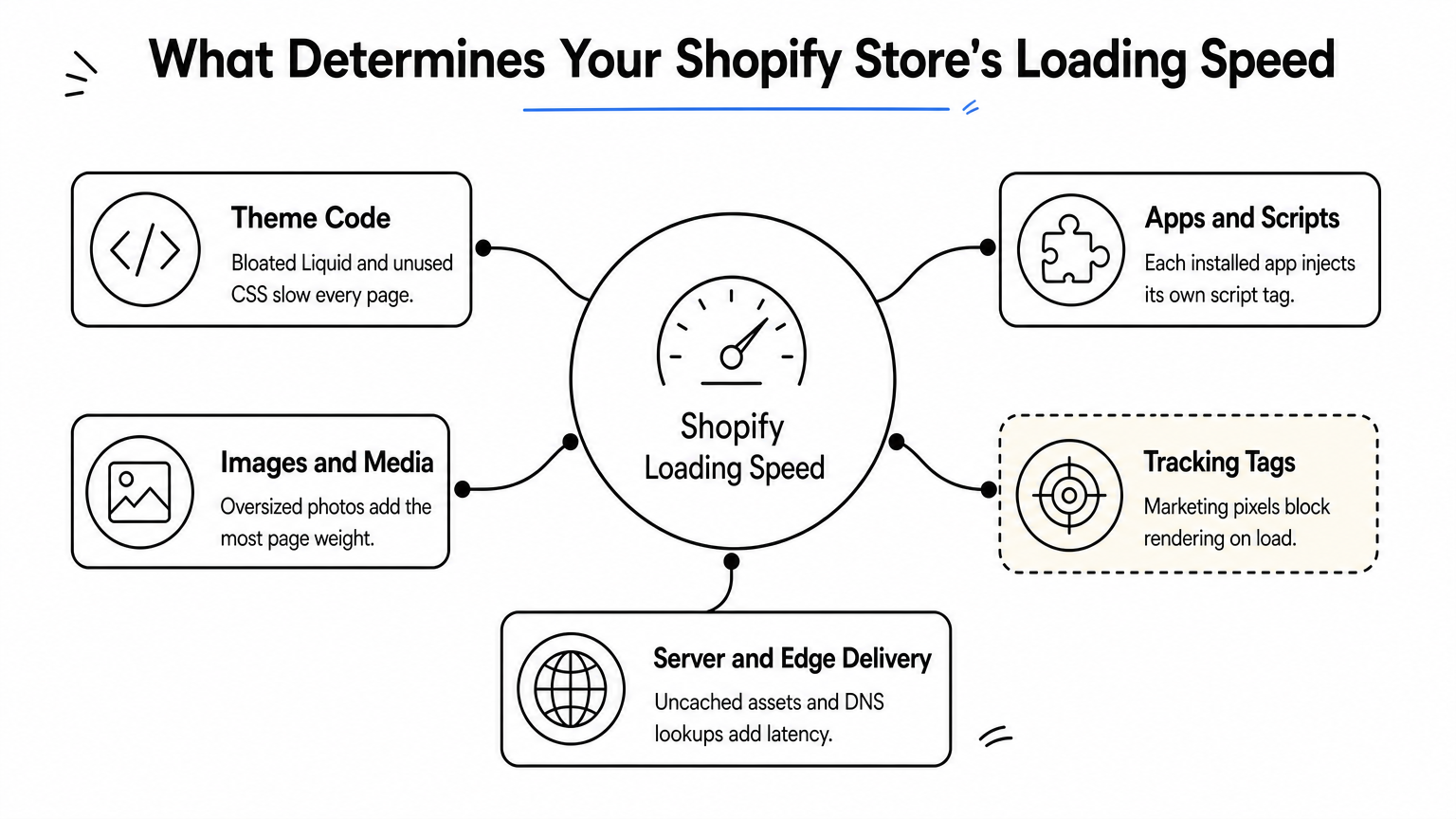
Your theme is the foundation, and a lot of premium themes ship with more code than any single store needs. Extra Liquid loops, unused CSS, and JavaScript for features you never turned on all get downloaded and parsed on every page view. A theme built for maximum customization options, rather than for your specific store, often carries this dead weight silently. You won't see it in the storefront preview. You'll see it in your load time.
Every app you install adds at least one script tag to your storefront, and most stores run 15 to 40 apps by the time they've been live a couple years. Reviews widgets, upsell popups, loyalty programs, and analytics tools all fetch their own JavaScript on page load, often from third-party servers you don't control. A single review app can add 200 to 400 milliseconds on its own, and that's before you count the five other apps doing the same thing.
The apps you forgot you installed are usually the ones slowing you down the most.
Images typically account for more page weight than any other element on a Shopify store. A single unoptimized product photo straight from a photographer can run 3 to 5 MB, and product pages with a dozen images in a gallery multiply that fast. Shopify does some automatic compression, but it won't catch everything, especially images uploaded to blog posts, banners, or theme sections outside the standard product image flow.
Pixel and tag managers for Meta, Google, Klaviyo, TikTok, and affiliate networks all load scripts on every page, frequently before the content your customer actually came to see. These scripts often block rendering because the browser has to fetch and execute them before it can finish painting the page. The more marketing tools you run, the more of these blocking calls stack up.
Even with Shopify's solid backend, how and where content gets delivered still matters. Static assets served from the origin instead of cached at the edge, redirects chained across apps, and DNS lookups for a dozen third-party domains all add latency the customer feels even if your Shopify plan itself is fast.
| Factor | Typical impact on load time | How common |
|---|---|---|
| Unoptimized images | 1-3 seconds | Very common |
| Excess apps/scripts | 0.5-2 seconds | Very common |
| Bloated theme code | 0.3-1 second | Common |
| Tracking/marketing tags | 0.3-1.5 seconds | Very common |
| Uncached edge delivery | 0.2-0.8 seconds | Common |
Once you see speed as five separate, fixable layers instead of one vague platform problem, the path to how to speed up website shopify stores gets a lot clearer. The next step is measuring where your store actually loses time, so you fix the layer that's hurting you most instead of guessing.
Before you touch a single app or image, run a proper baseline test. Google PageSpeed Insights gives you both a lab score and real-world Core Web Vitals data pulled from actual Chrome users who visited your store, which matters more than a synthetic score alone, and it's the starting point for any Shopify speed test. Check your homepage, a product page, and your collection page separately, since each template loads a different mix of apps and images and can score wildly differently.
GTmetrix and WebPageTest add detail that PageSpeed doesn't show as clearly, especially a waterfall chart of every request your page fires. Look for the biggest chunks first: which single request takes the longest, and which domain shows up over and over. That waterfall is where you'll spot the review app pinging three different servers or a tracking pixel loading before your hero image does.
If you can't see a waterfall of every request your page fires, you're guessing at what to fix, not diagnosing it.
Shopify's own Online Store Speed report, found under Analytics in your admin, gives you a simpler score benchmarked against comparable stores. It's a good sanity check but too shallow to diagnose specific problems, so treat it as a starting point, not your only source, and know what a good Shopify speed score actually means before you chase it.
Write down your numbers before you touch anything. You'll want a before-and-after comparison once you start fixing things, and memory alone won't cut it three weeks from now.
Running tests only on your fast office connection hides the problem most of your customers actually experience. Set your testing tool to simulate a throttled 4G connection, since that's closer to what a shopper on their phone in a parking lot deals with. Testing this way surfaces issues that a fiber connection at your desk will never show you, and it's usually where the gap between lab scores and real-user field data shows up.
Once you know your baseline, images are usually the fastest place to claw back seconds. Compressing every image on your store to a reasonable file size, without visibly changing quality, is often the single highest-leverage fix you can make, and it takes an afternoon rather than a rebuild.

Apps like TinyIMG, Crush.pics, or Shopify's built-in image editor can bulk-compress your existing library in one pass, then compress new uploads automatically going forward; compare them against the other best Shopify speed optimization apps before you commit. Run a bulk pass first, since most stores are sitting on years of full-resolution photos nobody ever resized before uploading.
A photo that looks identical to the human eye can still be five times heavier than it needs to be.
Lazy loading defers offscreen images until the shopper actually scrolls to them, so a product page with 20 gallery images doesn't force the browser to fetch all 20 before it can paint anything. Most modern Shopify themes support this natively; check your theme settings before installing another app for it. Sizing matters just as much: serve a 400px thumbnail as a 400px file, not a 2000px original squeezed into a small box with CSS. That single mistake, serving oversized files and letting the browser scale them down, is one of the most common causes of slow shopify loading speed on collection pages loaded with thumbnails.
Manual compression works, but it only covers what's already in your library at the moment you run it. New product photos, seasonal banners, and UGC uploads all need the same treatment every time someone adds them, and that's easy to forget once launch week passes. This is exactly the gap Nostra AI's Dash agent closes: it optimizes and delivers images from 310+ edge locations automatically, so every new upload gets the same treatment without anyone remembering to run a compression app again.
Most Shopify stores accumulate apps the way a garage accumulates boxes: nobody decides to keep them, they just never get thrown out. Every installed app injects at least one script into your storefront, whether it's active on the page a customer is viewing or not, and the way third-party Shopify apps destroy page speed is that the script still has to load, parse, and execute before the browser can finish rendering. A store running for two or three years often carries a dozen apps nobody on the current team even remembers installing.
Start in your Shopify admin under Apps and list every single one, including free trials and apps installed by a developer who left the company. For each app, note what it does, whether marketing or support actually uses it, and how often. Anything nobody can explain in one sentence is a candidate for removal.
If nobody on your team can explain what an app does in one sentence, it's costing you speed for nothing.
Disable one app at a time rather than several at once, then rerun your PageSpeed or GTmetrix test to see the actual change. Removing five apps together might improve your score, but you won't know which one mattered and which one you could have kept. Give each test a few minutes for caching to clear so you're comparing real numbers, not a cached copy of the old page.
Sometimes an app drives real revenue and removing it isn't realistic, even though it's heavy. In that case, check whether the app offers a lightweight or async loading mode, ask the vendor's support team directly, since many don't document it well. Loyalty programs, subscription managers, and review platforms often have a leaner script version available if you push for it. This step alone, cutting apps you don't use and pressuring the ones you keep to load faster, routinely recovers a full second or more of shopify loading speed without touching a single line of theme code.
Even after you trim apps and images, your theme code itself can be quietly working against you. Themes get sold on flexibility, and that flexibility means shipping CSS and JavaScript for a hundred features you'll never use, alongside the handful you actually did. Cleaning this layer up requires someone comfortable in Liquid, but the payoff shows up on every single page load, not just the ones with heavy images or excess apps.
Open your theme code editor and look for sections, snippets, and settings blocks tied to features you turned off months ago. A common example is a slideshow, countdown timer, or announcement bar that got disabled in the theme editor but still ships its CSS and JS file on every page, because disabling a section in the editor doesn't always stop the browser from downloading its assets.
{% comment %}
 Before: countdown-timer.liquid loads on every page,
 even though the feature was disabled months ago
{% endcomment %}
{% if section.settings.show_countdown %}
 {{ 'countdown-timer.js' | asset_url | script_tag }}
{% endif %}
Wrapping the asset call in the same conditional that controls the feature, as shown above, stops that file from loading at all when the feature is off. Small fixes like this rarely show up in a code review, but they add up across a whole theme.
Code you disabled in the editor can still be downloaded by every visitor unless it's actually removed from the template.
After you've cut the JavaScript your pages never use, minify your remaining CSS and JavaScript to strip whitespace and comments, and combine smaller files where your theme structure allows it. Fewer, smaller files mean fewer round trips for the browser, which matters more on mobile connections than most merchants expect.
Manual code cleanup takes real developer time, and it's easy to let it slide once the store is live and busy. That's part of why automated edge delivery has become popular alongside manual theme work, a point worth revisiting once you've handled the code you control directly.
Tracking scripts are the layer merchants are most afraid to touch, because nobody wants to break a Meta pixel or lose Klaviyo data. That fear is exactly why these scripts pile up unchecked for years, and why it helps to work through a Shopify site speed playbook that audits them methodically. Marketing tags for Meta, Google Ads, TikTok, Klaviyo, and every affiliate network you've ever run all fire on page load, and most of them block rendering while the browser waits for them to execute before it can finish painting the page your customer actually wants to see.
Open your Google Tag Manager container, or your theme.liquid file if you're hardcoding tags, and list every single script firing on every page load. You'll almost always find pixels for campaigns that ended a year ago, a Facebook conversion tag duplicated in two places, or an affiliate tracker nobody on the current team can name. Note which pages each tag actually needs to fire on, since a checkout conversion pixel has no business loading on your blog.
A tracking script that fires on every page but only matters on checkout is pure dead weight everywhere else.
Most tag managers let you control loading behavior directly, and getting this right recovers real time without losing any data.
Here's the part that trips up most merchants: the harder you clean up client-side tracking scripts to gain speed, the more fragile your actual tracking data gets, especially once cookies expire or a shopper blocks third-party scripts outright. Cutting a script is easy; keeping the identity data that script relied on is the harder problem. This is where Nostra AI's Crumble agent fits in, since it extends customer identity tracking well past the one-week cookie window most browsers now enforce, so you can trim scripts for speed without losing the attribution data your ad spend depends on.
Mobile traffic drives the majority of Shopify sessions for most brands, yet plenty of stores still get tested and tuned on a desktop connection first, which is a big reason mobile converts worse than desktop. Mobile shoppers deal with slower processors, less memory, and network conditions that swing from solid LTE to a weak signal in a crowded coffee shop, so a page that feels instant on your laptop can crawl on the device your customer is actually holding. Fixing shopify loading speed for mobile isn't a separate project from your desktop work, but it does need its own test pass and its own priorities.

Everything you fixed in the earlier steps matters more on a phone. A 3 MB image that loads in half a second on fiber can take four or five seconds on throttled 4G, and a render-blocking script that costs 300 milliseconds on a fast CPU can cost a full second on a mid-range Android chipset. Mobile doesn't introduce new problems so much as it magnifies the ones you already have.
A fix that looks small on desktop can be the difference between a sale and a bounce on mobile.
Run your PageSpeed Insights, GTmetrix, or WebPageTest checks with the mobile device profile selected, not just the desktop default, since Google scores these separately and so should you. Pay close attention to Cumulative Layout Shift here specifically, since shifting elements on a small screen cause more accidental taps and abandoned carts than the same shift does on a wide desktop layout.
When you optimize your website for mobile devices, prioritize whatever sits above the fold on a narrow screen: your hero image, your primary CTA, and your product title and price. Everything below that fold can load a beat later without the shopper noticing, but a delay on what's immediately visible reads as a slow site even if the rest of the page is fast.
Everything in Steps 2 through 6 works, but none of it stays fixed on its own. Manual speed fixes decay the moment someone uploads a new banner at full resolution, installs another app for a holiday promo, or adds one more tracking pixel for a new ad platform. Six months after a speed sprint, most stores have quietly drifted back toward where they started, just with different bloat than before.
Nobody on your team wakes up planning to slow the site down, it happens through normal work. A designer uploads a hero image straight from a shoot, a marketer adds a script for a new campaign, and a developer ships a theme update that reintroduces a render-blocking asset. Ongoing monitoring catches this drift before it costs you conversions, but almost no ecommerce team has the bandwidth to rerun PageSpeed tests and audit apps every single week.
Speed work you don't automate is speed work you'll redo in six months.
This is the gap that automated, edge-level tools are built to close. Instead of a person manually compressing each new image or flagging each new script, an agent running at the DNS level watches every request and acts on it continuously.
Dash, Nostra AI's site speed agent, handles exactly this layer for over 300 ecommerce brands, running the observation-and-optimization cycle continuously instead of as a one-time project, and it's delivered load time improvements up to 47% without requiring a single code change or replatform.
Manual audits still matter for decisions that need human judgment, like which app to cut or which theme feature to remove. But the repetitive, ongoing work of compressing every new image and catching every new bottleneck is exactly what automation does better than a quarterly checklist, so it's worth comparing performance optimization software before you pick a tool. The shopify loading speed gains you fought for in Steps 2 through 6 only compound if something keeps enforcing them after you move on to the next project.
Fixing shopify loading speed once feels great for about a month, then a new app or an unresized banner quietly erodes the gains you fought for. The stores that stay fast treat these seven steps as a recurring habit, not a project you close out and forget. Measure, compress, audit apps, clean code, manage scripts, tune for mobile, then automate what you can so the work doesn't unravel the moment you're busy with something else.
Speed and clean traffic go hand in hand, since bad bots inflate your analytics, waste ad spend, and make it harder to tell whether your real fixes are even working. If you want the bot traffic problem handled alongside your speed work, see how Edge Protect filters AI-powered bad bots in real time so real shoppers, not scrapers, are the ones experiencing the faster site you just built.


.svg)
