Shopify mobile speed optimization works when you fix the heaviest problems first: unused apps, third-party scripts, oversized images, a slow hero image, and a bloated theme. The ten fixes below run roughly from highest impact to lowest effort. A brand with no spare engineering time gets the most from an edge speed layer such as Nostra AI Dash, which deploys with a DNS change. A merchant who runs the store alone should start with the app audit and the image fixes. A store with a developer on call can go straight to the LCP, script deferral, and theme code items.
People often ask why Shopify feels slow on phones. The platform itself rarely causes it. Shopify serves stores from a global CDN, so the drag usually comes from what you add on top: apps, pixels, large photos, and heavy themes. Phones make each of those costs worse, because they have weaker processors and slower connections than the laptop you build on.
Each fix below covers what it fixes, how to apply it, and who gains most. Nostra AI runs agents at the edge of ecommerce storefronts, so the first item is our own product, and we say plainly where the free fixes should come first. Before the list, a short section shows how to measure, so you can prove each change worked.
Measure with PageSpeed Insights on the mobile tab, then confirm with real visitor data from Search Console and Shopify's own web performance report. Record a baseline for your homepage, a collection page, and a product page before you change anything. Without a baseline you cannot tell which fix helped and which only felt productive.
Start with PageSpeed Insights. Read the field data at the top first, because it comes from real Chrome users. The lab score below it comes from a simulated phone on a throttled connection, so use it to diagnose problems, not to judge your store.
Field data tells you whether shoppers are hurting, and lab data tells you why.
Google judges the three Core Web Vitals at the 75th percentile of visits. INP replaced FID as a Core Web Vital in March 2024, so ignore older advice that cites FID. The thresholds are documented on web.dev.
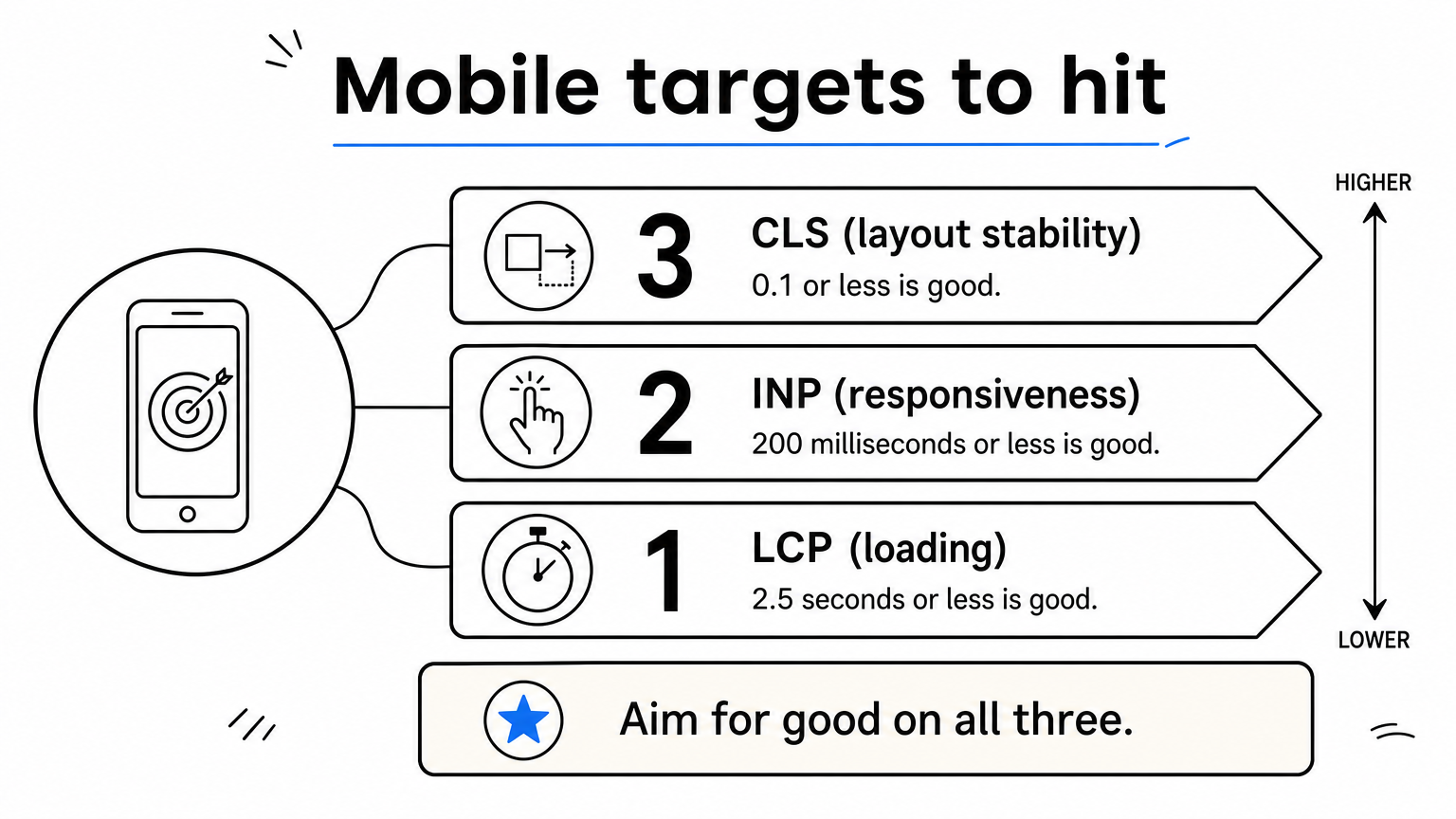
| Metric | Good | Needs improvement | Poor |
|---|---|---|---|
| LCP (loading) | 2.5 s or less | 2.5 to 4 s | over 4 s |
| INP (responsiveness) | 200 ms or less | 200 to 500 ms | over 500 ms |
| CLS (layout stability) | 0.1 or less | 0.1 to 0.25 | over 0.25 |
Run each page three times and keep the median, because Lighthouse scores move between runs. Change one thing at a time and retest after each change. Check at least once on a real phone over mobile data, since desktop emulation flatters results.
Dash speeds up your mobile pages at the edge without touching your theme, apps, or code. It is the Speed Agent behind Nostra AI Edge Delivery, and it is the fastest route when you have no engineering time.
Dash monitors your site speed around the clock and accelerates pages from over 300 edge locations, so a shopper on a phone gets content from a node near them. Nostra AI reports up to 47% faster load times and an expected revenue lift of about 3%. It is for storefronts where a slow page quietly reduces conversion.
Edge delivery speeds up the page without asking you to touch the theme.
Deployment is a DNS-level change. You need no code changes and no replatforming. The setup follows a fixed timeline.
Compare your PageSpeed baseline against the same pages after those two weeks.
Mid-size and large DTC brands on Shopify or Salesforce Commerce Cloud get the most from it, especially when engineers are busy elsewhere. Nostra AI is also SOC 2 compliant, which matters to larger security reviews. A small store with a handful of apps should run fixes 2 to 10 first. Dash accelerates delivery, but it cannot turn a 9 MB page into a light one, so it works best alongside the rest of this list. Talk to the team at nostra.ai for plan details.
Remove every app that does not earn its place, then clean the code it left behind. Apps are the most common cause of slow Shopify stores, and the fix costs nothing.
Many apps inject JavaScript and CSS into your storefront, even on pages where you never use their features. Some leave snippets in your theme after you uninstall them. Speed-booster apps are scripts too, so test them before and after, and uninstall any that do not move your numbers. You also cannot install a server cache plugin the way you can on WordPress, because Shopify manages hosting and caching. Your gains live in front-end weight.
Every app is a script until you prove it is worth its weight.
Work through your installed apps in a short pass.
theme.liquid and the snippets folder for leftover app code.Stores that have been live for years gain the most, since they have collected trial apps, retired review widgets, and abandoned popups. Merchants without a developer can finish steps 1 to 3 alone. Leave the code search in step 4 to a Shopify expert if you are not comfortable in the theme editor.
Your theme sets the speed ceiling for everything else, so choose one built on Online Store 2.0 and test it before you commit. Shopify's free Dawn theme is built with performance in mind and makes a good benchmark.
An older or feature-heavy theme ships CSS and JavaScript for mega menus, parallax effects, and video backgrounds that you may never use. No amount of image compression removes that code. A lean theme loads less before the first paint, which helps LCP and INP together.
Judge a theme on evidence, not on screenshots.
A slow theme caps your score before you optimize a single image.
Stores on pre-2.0 themes, or on themes with years of custom edits, gain the most. A theme switch is a project, though. If your current theme scores acceptably, finish the cheaper fixes first and change themes only when the numbers still stall.
Resize every image to the largest size a shopper will actually see, then compress it. Images are the heaviest part of most product and collection pages, so this is the best-paying fix after the app audit.

Consider a product gallery with eight photos uploaded straight from the camera at 900 KB each. That is 7.2 MB of images. Compress them to 150 KB each and the gallery weighs 1.2 MB, which is 6 MB less to download on a phone connection. A phone screen is under 500 CSS pixels wide, so delivering a 4000 px original wastes almost all of those bytes.
Resize to about 2000 px on the longest edge before upload, and compress with a tool such as Squoosh or TinyPNG. Upload JPEG or PNG, because Shopify's CDN serves WebP automatically to browsers that support it. Then let the theme choose the right size per device.
{{ product.featured_image | image_url: width: 800 | image_tag:
  widths: '320, 480, 640, 800',
  sizes: '(max-width: 749px) 100vw, 50vw' }}
Replace animated GIFs with short, muted, looping MP4 clips. They look the same and weigh far less.
A phone never needs the 4000 px original.
Catalogs whose photos come directly from a studio gain the most. The fix is one-time per image, so batch the bestsellers first and work down by traffic.
On mobile, your LCP element is usually the hero banner or the first product image, so load it first and never lazy-load it. A good LCP is 2.5 seconds or less.
PageSpeed Insights names your LCP element in its diagnostics. The usual faults are a hero set to lazy-load, a slider that delays the first image, or a huge file. Each one pushes the largest visible element later than it needs to be, and Google judges that time directly.
Load the hero eagerly with high fetch priority, and size it for phones.
{{ section.settings.hero | image_url: width: 1200 | image_tag:
  loading: 'eager',
  fetchpriority: 'high',
  widths: '375, 750, 1100',
  sizes: '100vw' }}
If the hero carries text baked into the image, upload a separate mobile crop. Turn off autoplay background video on mobile, because it competes with the image for bandwidth. Retest the LCP time after the change.
Never lazy-load the one image everyone sees first.
Any store whose mobile LCP sits above 2.5 seconds in Search Console gains the most. Stores with a text-heavy hero or a video hero often see the biggest drop.
Lazy load everything below the first screen, and give every image fixed dimensions. The browser then downloads images only as the shopper scrolls toward them, and the layout stays put.
A collection page with 24 products requests dozens of images at once. Native lazy loading delays the off-screen ones, which cuts the initial download and frees bandwidth for the content shoppers see first. Fixed dimensions reserve space, so nothing jumps when an image arrives, which protects your CLS score.
Add the attribute to below-the-fold images, along with width and height.
<img src="card.jpg" width="400" height="500" loading="lazy" alt="Linen shirt, front view">
Apply the same idea to video. Show a poster image and load the player only when a shopper taps it. Embedding a hosted video also avoids serving a large file from your own theme. Keep the first row of products and the hero eager, as in fix 5.
Load what the shopper sees now, and defer what they might see later.
Collection pages, long homepages, and storytelling pages gain the most. Stores with image-light product pages see a smaller effect, so check your own waterfall in DevTools before spending time here.
Delay or defer every script that does not need to run before the page is usable. Tracking pixels, chat widgets, review widgets, and heatmaps compete with your page for the phone's processor, and that hurts INP.
Scripts run on the main thread, so a pile of them makes taps feel slow even after the page appears. Duplicate tags make it worse, such as GA4 installed through an app, the theme, and a tag manager all at once. Each pixel you remove or defer returns time to the shopper.
Work through the usual suspects.
theme.liquid. They are designed to run in a sandbox away from your storefront code.defer to your own scripts.<script src="{{ 'custom.js' | asset_url }}" defer></script>
Retest your events after each change, because a delayed tag that misses a purchase hurts attribution.
A script that loads late costs nothing, and one that loads early costs every visitor.
Stores running paid social and search with five or more tags gain the most. Marketing and engineering should agree together on which tags are essential, since each team owns different scripts.
Swap the homepage slideshow for a single hero banner, and cut the homepage down to what a shopper needs to start browsing. Most mobile visitors never swipe past the first slide.
A slideshow loads several full-size images, which slows LCP and adds JavaScript for the carousel. A crowded homepage repeats the problem with more sections, more images, and more scripts. One strong hero with a single call to action loads faster and usually gives shoppers a clearer first step.
Rebuild the top of the page in a few moves.
Homepages assembled by committee gain the most. Stores sending social traffic to the homepage should also test it, since those visitors arrive on phones and leave quickly when the first screen drags.
The faster page is often the simpler page.
Use system fonts where your brand allows it, and limit custom fonts to one family in two weights. Every font file is another request that can delay text or make it flash.
Custom web fonts require extra downloads before text renders in its final style. That delays readable content, and on a weak connection it is noticeable. System fonts need no download, so text appears with the first paint. Many stores run three families and four weights without anyone deciding to.
Check your theme's typography settings first, since many themes offer a system font option. If you keep a custom font, tell the browser to show text immediately with a fallback.
{{ settings.type_body_font | font_face: font_display: 'swap' }}
Cap yourself at one custom family and two weights, and keep the other text on system fonts. Replace icon fonts with inline SVG, because a whole icon font loads for a few symbols.
Text should never wait for a font.
Brands with several font families gain the most. A brand-sensitive store can keep a custom font for headings only and let body text use the system stack, which keeps most of the identity and most of the speed.
Delete dead CSS, JavaScript, sections, and redirect chains from your theme. Years of edits leave a store carrying code that no page uses.
Unused code downloads and parses on every visit, so it costs the same as useful code. Redirect chains add a round trip for each hop before the page even starts loading. Duplicate libraries are common too, such as two copies of a slider script from two old apps.
Always duplicate your theme first, then work on the copy.
Code you do not use still ships to every phone.
Stores with years of customization gain the most, and so do stores that have changed their URL structure. Non-coders should hire a Shopify expert for steps 1 to 4. Redirect cleanup in step 5 is safe for a merchant to do alone.
Mobile speed comes from removing weight, not from adding tricks. Measure first, then cut the apps and scripts you do not need, shrink and prioritize images, simplify the homepage, and trim the theme. Those fixes are free and live inside your admin or theme code. If you lack engineering time, an edge layer like Dash takes on delivery without code changes and runs alongside everything else here.
Order matters. Start with the app audit and image sizes, since they are cheap and show up in your next PageSpeed run. Then handle the hero image and third-party scripts, which usually decide your LCP and INP. Re-measure after every step and keep a log, so you know what held.
Fast pages still suffer when bots find your store. Bot traffic inflates sessions, distorts conversion rate, and wastes ad spend, which can hide the gains you just made. If you want the traffic reaching your fast store to be real shoppers, see how Edge Protect filters bad bots before they reach your site.


.svg)
