Chrome first party cookies are small text files that the website you are visiting stores in your browser under its own domain, the one shown in the address bar. They keep you signed in, hold items in your cart, and remember settings such as language. Chrome allows them by default. You manage them under Settings, Privacy and security, Third-party cookies, and in the Delete browsing data window.
The menus are confusing because Chrome names its main cookie page after third-party cookies. The controls that affect first-party cookies are spread across site-level lists and the delete tool. Google also dropped its plan to remove third-party cookies from Chrome, so both kinds are still active in regular windows. Knowing which is which decides what you should change.
This article covers why first-party cookies matter, how to allow, block, and delete them on desktop and mobile, and how to check whether a cookie is first-party, including the ones Google sets. It closes with what site owners should know. Nostra AI builds edge agents for ecommerce storefronts, including one that extends first-party cookie life, so how browsers treat these cookies is central to our work.
First-party cookies matter because nearly everything that makes a website feel personal depends on them. Without them, you would log in again on every page and your cart would empty each time you clicked a link.
A site sets a first-party cookie when you load one of its pages, follow an internal link, or request a file from the same site, such as an image or font. Chrome stores the cookie and sends it back on your next request, so the site recognizes your browser without asking who you are. Most everyday web functions rely on this:
The difference is the domain. If a cookie's domain matches the site in your address bar, it is first-party. If it comes from a different domain, such as an ad server called by an embedded script, it is third-party. Some people call these cross-site cookies. Chrome treats the two differently:
| First-party cookie | Third-party cookie | |
|---|---|---|
| Set by | The site in your address bar | A different domain loaded inside the page |
| Typical uses | Logins, carts, preferences, on-site analytics | Ad targeting, embedded widgets, cross-site tracking |
| Chrome default, regular window | Allowed | Allowed |
| Chrome default, Incognito | Allowed until you close the window | Blocked |
Chrome's default does not block third-party cookies in regular windows. Google abandoned its plan to phase them out, so they stay on by default and you manage them through the existing privacy settings. First-party cookies were never part of that plan.
For most people, yes. Accepting first-party cookies costs little and keeps sites working. Block them broadly and you will hit sign-in loops, empty carts, and cookie banners that return on every visit.
The larger privacy risk sits in third-party cookies, which can follow you across sites. First-party cookies can still record what you do on a single site, though. Tighten them for sites you distrust, and clear them when you finish on a shared computer. Sites covered by laws such as the GDPR must also ask for consent before setting non-essential first-party cookies, such as analytics ones, whatever your Chrome setting says.
Allow first-party cookies by default, and block or delete them only for sites you have a reason to distrust.
You manage first-party cookies in Chrome from the Privacy and security page. The quickest route is typing chrome://settings/cookies into the address bar. The steps below work on Windows, Mac, Linux, and ChromeOS.
Follow these steps to reach the page:
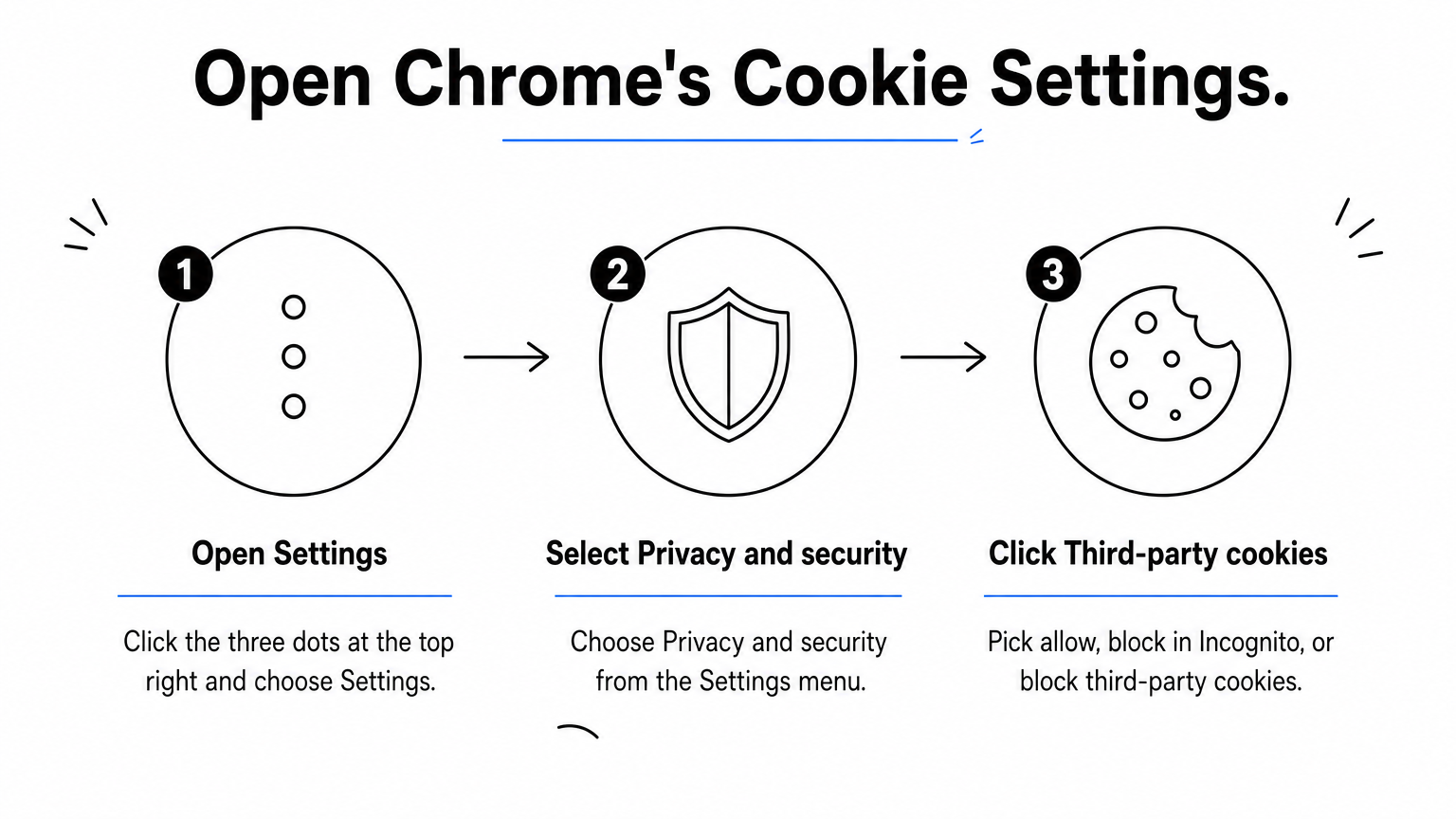
The three main options are Allow third-party cookies, Block third-party cookies in Incognito (the default), and Block third-party cookies. These govern third-party cookies only. Recent Chrome versions do not offer one switch that blocks every first-party cookie, so you control first-party cookies site by site, as the next step shows.
On the same page, scroll to the customized behaviors. Use Sites that can always use cookies to allow a site, and Sites that can never use cookies to block one. Click Add next to the list you want, type the domain, such as example.com, and save.
An allow list helps when you block cookies widely but need a bank or store to work. A block list helps when one site tracks you more than you like. You can also click the icon at the left of the address bar, open Cookies and site data, and choose Manage on-device site data to see and remove that site's cookies right away.
To delete cookies, press Ctrl+Shift+Delete (Cmd+Shift+Delete on Mac). Pick a time range, tick Cookies and other site data, and click Delete data. Deleting signs you out of most sites, so pick a short range if you only want to clear recent activity. For automatic cleanup, turn on the option to clear cookies and site data when you close all windows.
If a site says cookies are disabled, check three things. First, make sure the site is not on your never-allow list. Second, confirm you are not in a window or profile with restrictions, or running an extension that blocks cookies. Third, delete that one site's cookies and reload, because a corrupted cookie can cause login loops.
Chrome's main cookie page governs third-party cookies, so handle first-party cookies through the per-site lists and the delete tool.
On Android, Chrome follows the same Privacy and security path as desktop. On iPhone and iPad you get fewer controls, because Chrome on iOS runs on Apple's WebKit engine and follows Apple's rules.
Menu labels shift slightly between versions, but the route is consistent:
To clear first-party cookies, go to Privacy and security, tap Delete browsing data, tick Cookies and site data, and confirm. You can pick a time range so you only wipe recent activity.
Chrome on iOS gives you little more than the delete option. Open the three-dot menu, go to Settings, then Privacy and security, and choose Clear Browsing Data. Tick Cookies, Site Data and confirm. Because cookies are enabled unless you clear them, an "enable cookies" problem on iPhone usually comes from a content blocker or private browsing, not a Chrome toggle.
If you need a per-site allow or block list, use Chrome on a desktop or Android device. Cookie behavior on iOS is largely set by Apple's tracking prevention, not by Chrome.
On mobile, Android mirrors desktop Chrome, while iPhone and iPad let you do little beyond clearing cookies.
A cookie is first-party when its domain matches the site in your address bar. You can confirm this in seconds using Chrome's built-in developer tools, and the answer is sometimes surprising for Google's own cookies.
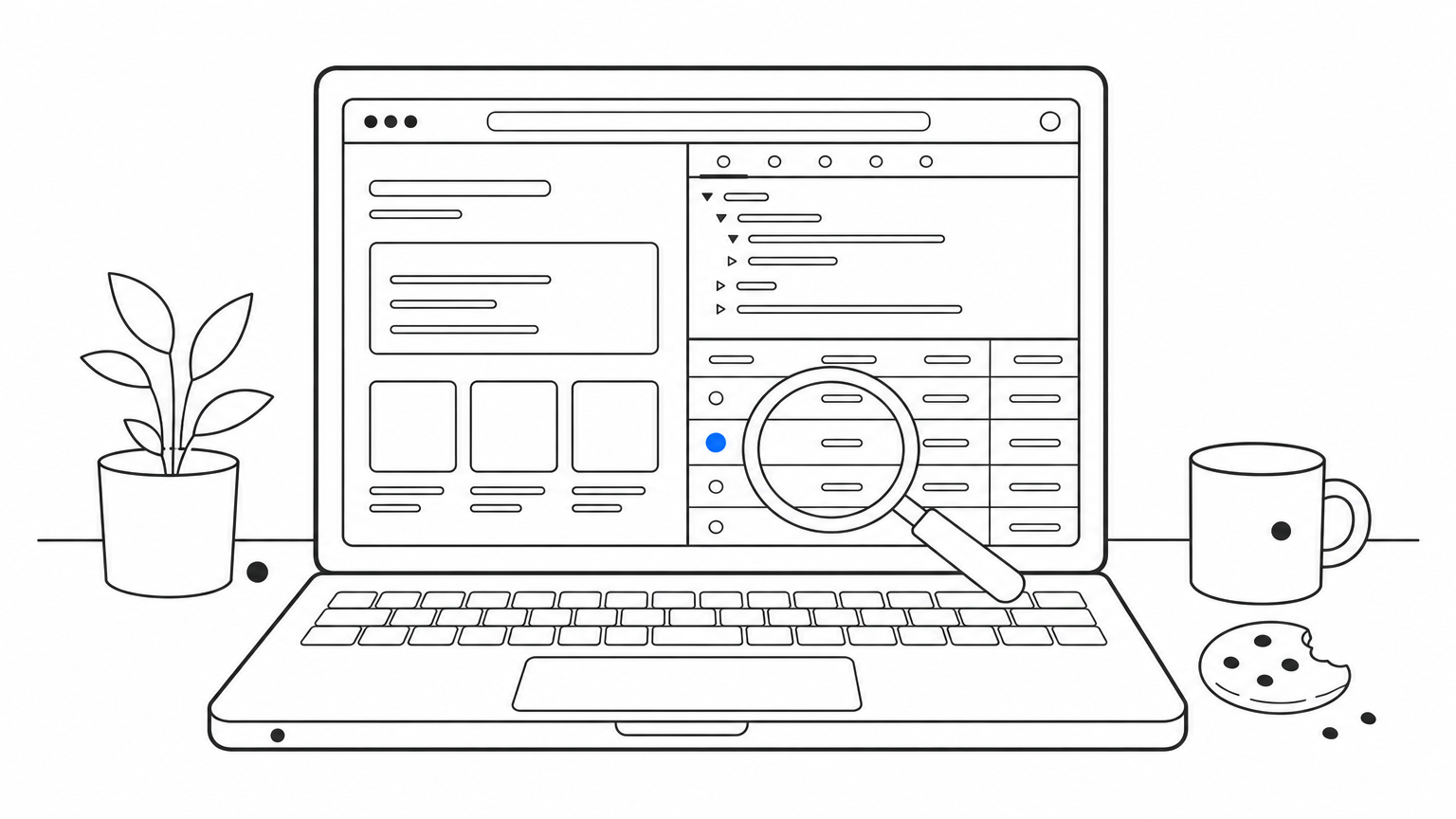
Open the site, press F12 (or Cmd+Option+I on Mac), and click the Application tab. Under Storage, expand Cookies and select the site. The Domain column shows who set each cookie. A domain that matches the address bar means first-party. A different domain means third-party. The SameSite column also helps, because a cookie meant for cross-site use must carry SameSite=None.
Remember that "party" is about domain, not ownership. A company that serves images from a second domain it owns still sets third-party cookies on its main site. Subdomains are different. A cookie from shop.example.com on a page at example.com is the same site, so it counts as first-party.
It depends on where you are. When you visit google.com, the cookies Google sets are first-party. When Google's content loads on another site, the same company can set third-party cookies.
| You visit | Cookie from | Party |
|---|---|---|
| google.com | google.com | First-party |
| yourstore.com | yourstore.com, such as a Google Analytics _ga cookie | First-party |
| yourstore.com | doubleclick.net, an ad server domain | Third-party |
| A blog with an embedded video | youtube.com | Third-party |
The _ga row is the one that surprises people. Google's analytics script runs on the site's own domain, so the cookie it writes belongs to that domain and shows up as first-party. This is why blocking only third-party cookies in Chrome does not stop most on-site analytics.
Look at the domain, not the brand: the same company can set first-party cookies on its own site and third-party cookies on yours.
For site owners, first-party cookies are the most dependable way to recognize returning visitors. They still have limits: visitors delete them, some browsers shorten their life, and consent rules apply.
Chrome is the lenient browser here. Safari's tracking prevention limits cookies written by JavaScript to seven days, which is one reason many tracking identities reset after about a week. Visitors also clear cookies, switch devices, and decline consent banners. Each reset turns a returning customer into a new visitor in your analytics, which weakens attribution and ad platform matching.
Consent is the other limit. First-party analytics cookies need consent under laws such as the GDPR, even though they look less intrusive than third-party cookies. Chrome allowing a cookie does not mean your site may set it. Audit what your site sets, categorize it by purpose, and record consent choices.
Crumble, our Edge ID agent, supports first-party tracking on your own domain. It extends cookie life from about one week to 2+ years and recovers lost identities automatically. It works with Meta, Google, Klaviyo, and GA4, and Nostra manages the deployment.
Results depend on the browser, consent, and your integrations. Crumble can only recognize visitors who have not opted out, and browser restrictions and cookie settings still apply. That is the honest boundary of any first-party approach, and it is why consent handling comes first.
Chrome is permissive with first-party cookies, so your tracking gaps come from other browsers, deleted cookies, and consent.
Chrome first-party cookies are the cookies a site sets on its own domain, and you should allow them in most cases. Use the Third-party cookies page for broad rules, the allow and block lists for single sites, and Delete browsing data when you want a clean slate. Check the Domain column in DevTools when you are unsure who set a cookie.
If you run an ecommerce store, remember that a cookie only helps when a real shopper set it. Bots can load pages, collect cookies, and inflate sessions. You can filter bad bot traffic out of your analytics with Edge Protect before it distorts the first-party data you rely on.


