Google Analytics 4 uses first-party cookies, not third-party ones. The first party cookies Google Analytics uses are written to your own domain by the GA4 tag running on your pages, so the browser treats them as belonging to your site, not to Google. Their job is to tell one browser from another and one session from the next.
A first-party cookie is a small text file that the site in the address bar sets and reads. A third-party cookie comes from a different domain, usually embedded content such as an ad or a widget, which is why browsers restrict them. The domain stored on the cookie decides the label. It does not matter who wrote the script or who receives the data.
This article explains why that distinction matters, which cookies GA4 sets, how to check and control them on your own site, and where browsers and privacy rules still cut into your numbers. Nostra AI builds agents that run at the edge of ecommerce storefronts, including one for cookie lifetime and one for bot traffic, so these details matter to the stores we work with.
Google Analytics cookies are first-party, and that is why GA4 keeps collecting data in browsers that block third-party cookies. The label controls what the browser allows, who can read the cookie, and how much of your reporting survives.
Google's documentation says the GA4 JavaScript tags use first-party cookies to distinguish unique users and unique sessions. The tag writes the cookie to the domain in the address bar, so a visit to yourstore.com produces a cookie that belongs to yourstore.com.
Because the cookie is tied to your domain, only your site's pages can read it. Another site running GA4 gets its own cookie with its own random ID. That is why these cookies cannot follow one browser across unrelated websites.
This point trips up many people. The tag file loads from a Google domain and the data goes to a Google domain, so it feels third-party. But a cookie's party depends on the domain it is stored under, not on who wrote the script. Once the script runs inside your page, it writes the cookie the same way your own code would, and the browser files it under your domain.
The data is a separate matter. The tag reads the cookie value and passes it to Google inside each request as a parameter. First-party describes where the cookie lives, not who receives the data. Keep those two ideas apart and most of the confusion disappears.
A first-party cookie tells you where the cookie is stored, not who receives the data it helps collect.
| First-party cookie | Third-party cookie | |
|---|---|---|
| Set by | The domain in the address bar | A different domain embedded in the page |
| Readable by | That domain only | The embedding domain, on every site that embeds it |
| Browser treatment | Allowed by default | Restricted by default in Safari and Firefox |
| Example | GA4's _ga cookie on yourstore.com | An ad network's tracking cookie |
For you as a site owner, this means three things. GA4 keeps working when a visitor blocks third-party cookies. Each domain and subdomain setup needs its own handling, which matters if you run a separate checkout domain. And first-party does not mean exempt from privacy rules, which the last section covers.
GA4 relies on two core first-party cookies: _ga, which identifies the browser as a user, and _ga_<container-id>, which holds the state of the current session. Everything else in your user and session reports builds on those two values.
The container ID is your measurement ID without the "G-" prefix. For a measurement ID of G-ABC123XYZ, the session cookie is named _ga_ABC123XYZ. These are the default lifetimes.
| Cookie | What it stores | Default lifetime |
|---|---|---|
_ga |
A random client ID that identifies the browser as a user | 2 years |
_ga_<container-id> |
Session ID, session count and engagement state | 2 years |
_gac_<property-id> |
Google Ads campaign data, when Ads linking is on | 90 days |
_gcl_au |
Ad click data for conversion measurement, set by the Google tag | 90 days |
The two-year figure is the cookie's expiry, not the length of a session. Each visit refreshes it, so an active visitor keeps the same client ID for as long as the browser keeps the cookie.
The tag works through the same sequence on every page view:
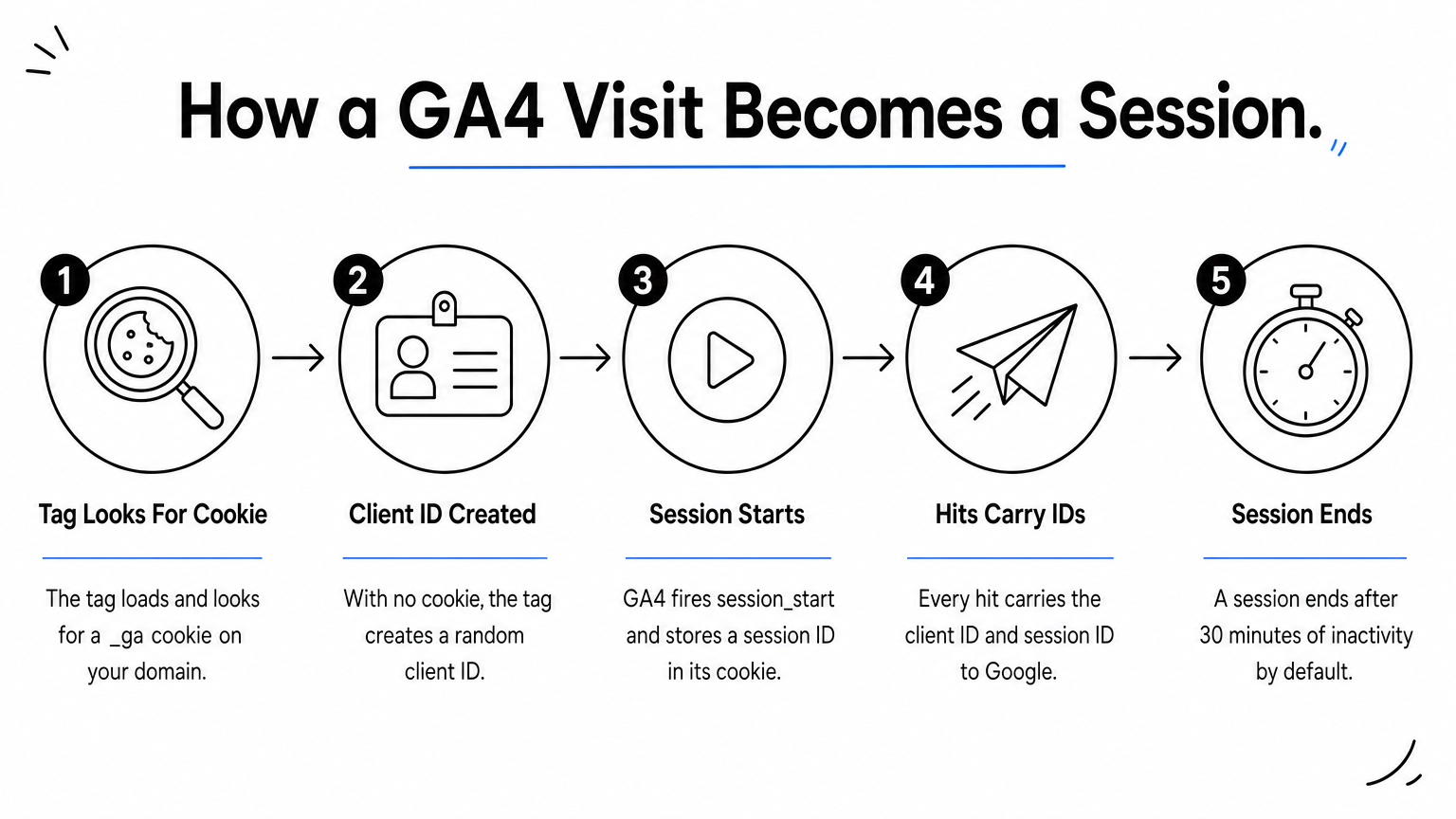
_ga cookie on your domain.session_start event and stores a session ID in the _ga_ cookie.A "user" in GA4 is therefore a browser with a cookie, not a person. If you pass a User ID for logged-in customers, GA4 can connect that person's sessions across devices. Without it, the same shopper on a phone and a laptop counts as two users.
Many older guides describe __utma, __utmb, __utmz and similar cookies. Those belong to classic Google Analytics. _gid and _gat belong to Universal Analytics, which Google retired. GA4 does not need them, so a guide built around those names describes software you are probably not running.
Any bot that executes JavaScript runs your GA4 tag. It arrives with no cookie, gets a fresh client ID, and appears as a new user. Bots that discard cookies after each request look like a different user every time. That inflates sessions and users, and it distorts conversion rates. Filtering them before they reach the tag fixes the data at the source.
GA4 counts browsers with cookies, so anything that arrives cookie-less, bots included, counts as a new user.
You can verify GA4's cookies in two minutes with browser developer tools, then adjust their lifetime, scope and consent behavior in the tag settings. Do the check first so you know what your site actually sets.
Follow these steps in Chrome. Other browsers have the same panels under slightly different names.
_ga and _ga_ followed by your measurement ID.If the cookies are missing, the likely causes are a consent banner that has not been accepted, a blocked script, or a tag that is not installed on that page.
With the gtag.js install, you can set cookie options in the config call. This example shortens the lifetime to 90 days:
gtag('config', 'G-XXXXXXXXXX', {
  cookie_expires: 7776000, // 90 days, in seconds
  cookie_domain: 'auto'
});
With Google Tag Manager, the same settings sit in the Google tag's configuration settings. A shorter lifetime reduces how long an identifier persists, but it also shortens how long you can recognize a returning visitor, so choose it on purpose.
If your store spans more than one domain, add them in the data stream's tag settings under the domain configuration. GA4 then passes the client ID in the URL so a visitor moving from your store to a separate checkout domain stays one user.
Google's Consent Mode lets the tag wait for a choice. Set the default to denied before the config call, then update it when the visitor accepts:
gtag('consent', 'default', {
  analytics_storage: 'denied'
});

// After the visitor accepts analytics cookies:
gtag('consent', 'update', {
  analytics_storage: 'granted'
});
While analytics storage is denied, the tag does not write the _ga cookies. GA4 can still receive cookieless pings and use them for modeling, but modeled data is an estimate, not a count of real visitors.
Check what your site actually sets in the Application tab before you change any setting.
Browsers that block third-party cookies leave GA4's first-party cookies alone, but several other limits still cut into your data. Safari's lifetime cap, script blockers, declined consent and cleared cookies all shrink the picture.
Safari and Firefox restrict third-party cookies by default, and a visitor in either browser still gets a normal _ga cookie from your site. If you are a visitor asking whether to accept first-party cookies, the answer is usually yes. They keep you signed in, hold your cart and remember your language. In Chrome, open Settings, then Privacy and security, then Third-party cookies. Blocking third-party cookies there does not touch the first-party ones that sites need.
| Limit | What happens | What you can do |
|---|---|---|
| Safari's tracking prevention | Cookies written by JavaScript, like _ga, are capped at 7 days |
Extend identity on your own domain, covered below |
| Ad blockers and privacy browsers | The tag is blocked, so no cookie and no hit | Serve the tag from your own domain with server-side tagging, which reduces blocking |
| Declined consent | No analytics cookies are written | Use Consent Mode for modeled estimates |
| Cleared cookies or a new device | A new client ID appears | Send a User ID for logged-in customers |
Here is the effect on one shopper. She clicks an Instagram ad on her iPhone on November 1 and browses. She returns on November 11 from an email and buys. In Chrome, GA4 keeps her _ga cookie, so both visits belong to one user. In Safari, the cookie expired after seven days, so the second visit looks like a brand-new user and the purchase is credited to email alone.
Browsers treat first-party cookies leniently, but privacy law looks at what you do with the data. Under EU and UK rules, analytics cookies generally need consent whether they are first-party or not. The US has no single federal cookie consent law, but state privacy laws such as California's give residents notice and opt-out rights over certain sharing and advertising uses. Disclose your analytics in your privacy policy and check your setup with a lawyer.
If you turn on Google signals, Google can also associate data with signed-in users who have personalized advertising enabled. That connection is separate from the _ga cookie, and it is one more reason to say plainly who receives your data.
The 7-day cap in Safari is the largest source of lost returning visitors on ecommerce sites. Crumble, Nostra AI's Edge ID agent, supports first-party tracking on your domain to help recognize returning visitors and connect customer journeys. It extends cookie life from about one week to 2+ years and recovers lost identities for integrations including GA4, Meta, Google and Klaviyo. Recognition still depends on consent, browser restrictions, cookie settings and your integrations, so it improves identity continuity, not guarantees it.
The biggest gap in GA4 data is usually not blocking but short cookie life in Safari.
Google Analytics cookies are first-party, set on your domain by the tag running in your page. That is why GA4 survives third-party cookie blocking, and why the real threats to your data are different: Safari's 7-day cap, blockers, declined consent and bot traffic that shows up as phantom users.
Check your cookies in the Application tab, set a lifetime and consent behavior you can defend, and treat privacy as a question of data use, not cookie labels. If bots are inflating your sessions and users, see how Edge Protect keeps bad bots out of your analytics before they ever reach your tag.


