A slow or confusing landing page costs you money twice. Visitors bounce, and Google Ads charges you more per click because your Quality Score drops. If you want a landing page experience test, you probably need a score, a list of problems, and a way to fix them today.
Here is the short answer. Run your page through PageSpeed Insights for speed and Core Web Vitals, then walk the page on a real phone to check relevance, clarity, and trust. Google's Ads rating covers the same ground: how fast the page loads, how well it matches the ad, and how easy it is to use. A good landing page experience check takes about 15 minutes and costs nothing.
This guide shows you how to run each test, read the results, and decide what to fix first. We also cover problems that tools often miss, like bot traffic skewing your data and bugs that only appear on certain devices. At Nostra AI, we work with more than 300 ecommerce brands on these issues, so the fixes here come from real storefronts.
A landing page experience test checks whether a visitor who clicks your ad gets what you promised, fast, on any device, without friction. Tools use different labels, but every landing page experience tester looks at the same three layers.
Think of the test as three questions. Does the page load quickly? Can people use it? Does it deliver on the click? The table shows what each layer covers and where you check it in the steps that follow.
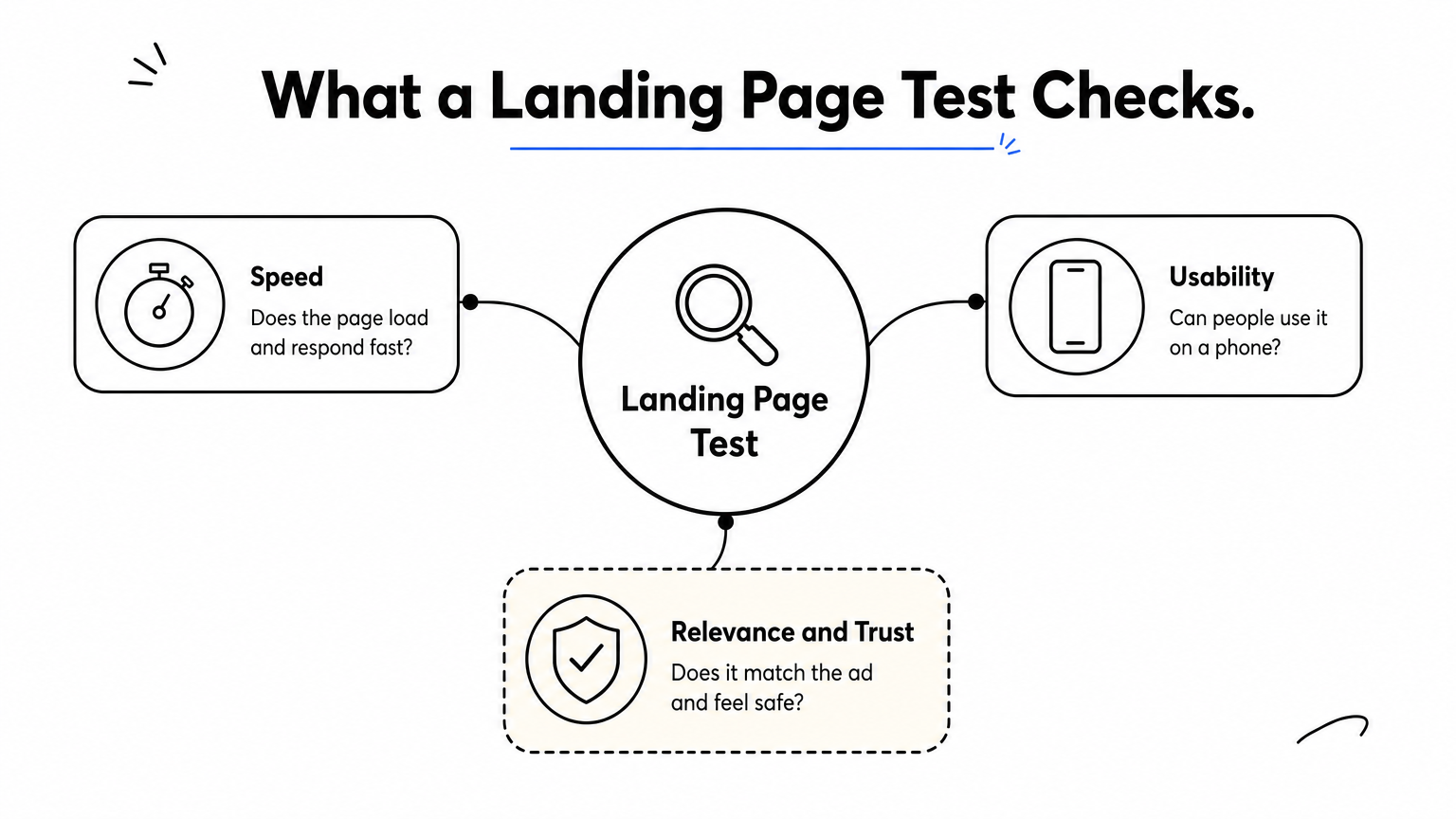
| Layer | The question it answers | Typical signals | Where you check it |
|---|---|---|---|
| Speed | Does the page load and respond fast? | LCP, INP, CLS, server response time | PageSpeed Insights, Search Console |
| Usability | Can people use it on a phone? | Tap targets, text size, layout shifts, popups | Real device, Chrome DevTools |
| Relevance and trust | Does it match the ad and feel safe? | Headline match, clear offer, contact info, policies | Your own eyes, heatmaps |
Most free tools cover only the first two layers. Relevance needs a person reading the ad and the page side by side. A page that fails any one layer loses visitors, even when the other two score perfectly.
A fast page that does not match the ad still fails the test.
Within Google Ads, landing page experience is one of three Quality Score components, next to expected click-through rate and ad relevance. Google rates it Above average, Average, or Below average. It says it looks at relevant and useful content, mobile-friendliness, load time, easy navigation, and transparency and trustworthiness. You can read the details in Google's Quality Score documentation.
Google gives you a three-level label, not a to-do list. If your rating says Below average, you still have to find the cause yourself. That is why a full check goes beyond the Ads column and tests each layer on its own.
Core Web Vitals are Google's field measurements of real visitor experience. Each one has a "good" threshold, and Google evaluates them at the 75th percentile of real visits. That means 3 in 4 visitors need to have a good experience for the page to pass. The metrics are documented on web.dev.
| Metric | What it measures | Good | Poor |
|---|---|---|---|
| Largest Contentful Paint (LCP) | How fast the main content appears | 2.5 s or less | Over 4 s |
| Interaction to Next Paint (INP) | How fast the page reacts to taps and clicks | 200 ms or less | Over 500 ms |
| Cumulative Layout Shift (CLS) | How much the layout jumps while loading | 0.1 or less | Over 0.25 |
Knowing how to check landing page experience starts with knowing which of these layers is failing. The next eight steps take you through each one in order, starting with a decision that most people skip: choosing exactly which page and which goal you are testing.
Every landing page experience test starts with a choice, and most people skip it. Any landing page experience tester will happily score whatever URL you paste in, but it cannot tell you whether it is the right one. Before you open a tool, pick one URL and one goal.
Use the final URL from your ad, not your homepage. In Google Ads, open the ad, copy the final URL, and paste it into every test exactly as written, tracking parameters included. Start with the page that gets the most ad spend, because a fix there pays back fastest.
Then check whether that URL redirects. Each hop adds load time that visitors feel, and tools that follow redirects may score the destination, not the page your ad points to. A redirect chain is one of the cheapest problems to fix, so note it now.
Next, write down what a successful visit looks like. The goal decides which results matter later, when you prioritize fixes.
| Page type | Primary goal | Metric to track |
|---|---|---|
| Product page | Add to cart | Add-to-cart rate |
| Collection page | Click through to a product | Product click-through rate |
| Lead generation page | Form submission | Form completion rate |
| Sale or offer page | Purchase | Conversion rate, revenue per visitor |
Record your starting numbers before you change anything. Pull the last 30 days from GA4 for this page: conversion rate, bounce rate, device split, and your current Ads landing page experience rating. Without a baseline, you cannot prove a fix worked. Split the numbers by mobile and desktop too, since mobile traffic often converts at half the desktop rate and hides the real problem.
One URL, one goal, one baseline: that is a test you can learn from.
Your Ads account already holds a free landing page experience check, and it takes about two minutes. Google rates every keyword with enough traffic, so you can see which keywords point to a weak page before you run any other tool.
Open the report in five steps:
Ratings sit at the keyword level, not the page level. One page can show different ratings for different keywords. If a cell is blank, the keyword has too few impressions to be rated, so test those pages with the other steps instead.
Compare all three columns before you act. Each rating points to a different kind of fix.
| Landing page exp. | Other columns | What it usually means | Next move |
|---|---|---|---|
| Below average | Ad relevance is fine | The page is the problem | Run Steps 3 to 5 |
| Below average | Ad relevance is low too | Ad and page do not match | Rewrite the ad or change the URL |
| Average | Any | Room to improve | Fix the cheapest issues first |
| Above average | Any | No page-level flag | Test anyway, since mobile gaps hide here |
When only the landing page column is low, the page is the cause, not the ad. That tells you where to spend your time.
The Ads rating tells you that something is wrong, never what.
Treat the label as a starting signal, not a final grade. Google describes Quality Score as a diagnostic tool, and the rating updates slowly after you make changes. Note today's labels next to the baseline you recorded in Step 1, then move on to measure speed directly.
Speed is the layer you can measure most precisely, and Google's free tool gives you real numbers in under a minute. This part of the landing page experience test shows whether slow loading is dragging down your Ads rating.
Open PageSpeed Insights and work through these steps:
Start with the mobile tab, since most ad clicks come from phones. Save a screenshot next to the baseline you recorded in Step 1, so you can compare after your fixes.
The report has two parts. The top section, labeled "Discover what your real users are experiencing," is field data from the Chrome User Experience Report, covering the last 28 days. The Lighthouse section below is lab data, one simulated load on a throttled phone.
Field data is what Google uses to judge real experience. Lab data helps you debug. Run the lab test three times and use the median, because single runs swing from one load to the next. If the field section says there is not enough data, the page has too little traffic. In that case, rely on Lighthouse for diagnosis and check the origin-level results for a rough picture.
Field data decides how your page is judged; lab data tells you why.
Once you know which metric fails, the likely cause is short. This table covers what we see most often on ecommerce landing pages.
| Failing metric | Common causes | First fix |
|---|---|---|
| LCP over 2.5 s | Oversized hero image, slow server, render-blocking scripts | Compress and preload the hero image |
| INP over 200 ms | Heavy third-party scripts, chat widgets, tag managers | Remove or delay tags you do not need |
| CLS over 0.1 | Images without dimensions, late banners, injected popups | Set width and height, reserve space |
Finally, open the Diagnostics list and sort by savings. Third-party scripts cause the most trouble on storefronts, and you can fix them without a redesign. If you do not have engineers to spare, an edge speed agent like Dash can accelerate delivery at the DNS level instead.
Speed scores do not show whether a thumb can use your page. This part of the landing page experience test is manual and takes about five minutes. It matters because a page can pass PageSpeed Insights and still lose mobile shoppers to tiny buttons and covered content.
Load the exact ad URL from Step 1 on your own phone, on cellular data instead of office Wi-Fi. Then go through this checklist:
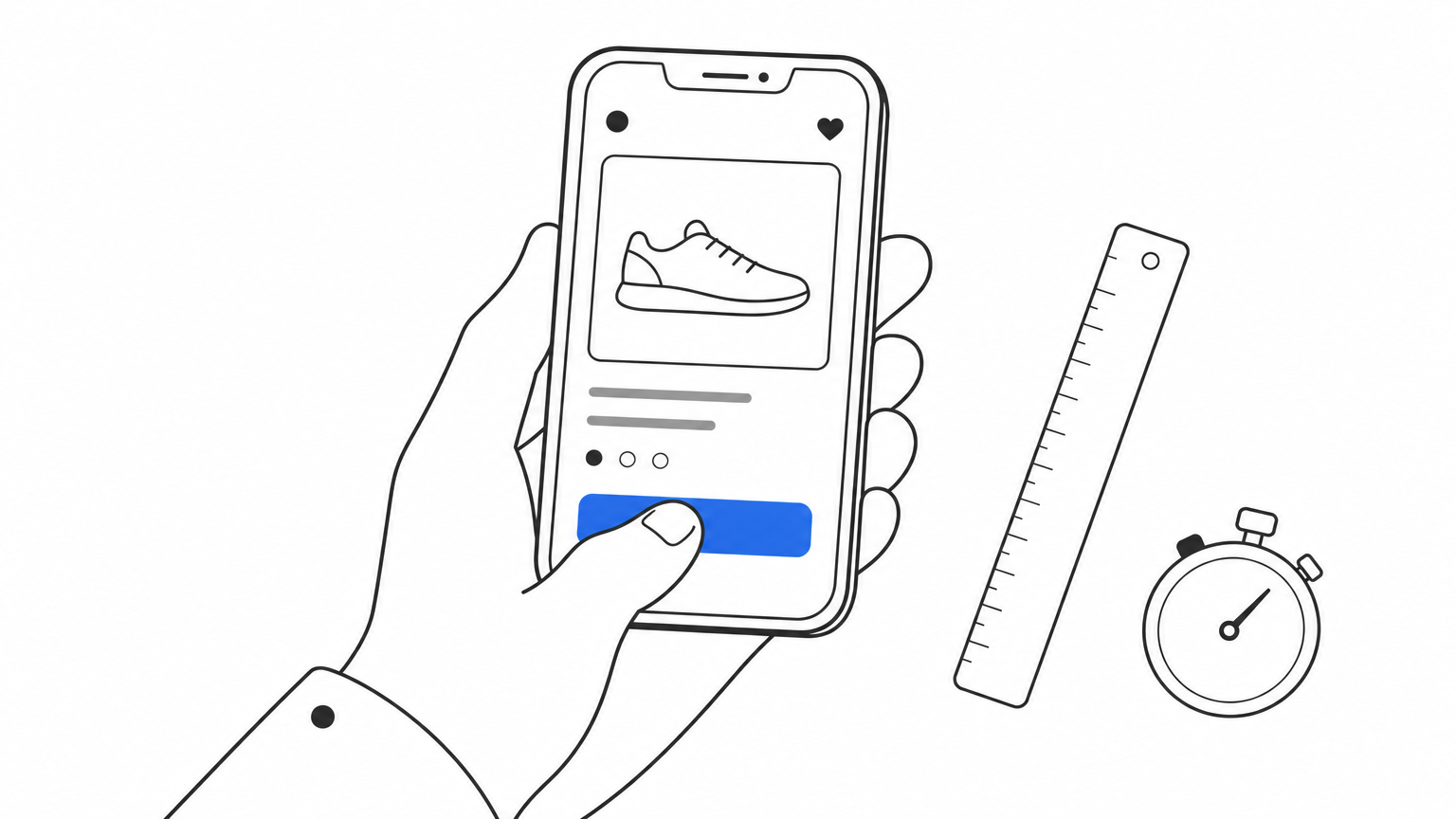
Fail any item and you have found a fix. Tap targets and covered buttons cause the most lost clicks, so try to complete the goal from Step 1 with one thumb.
If a visitor cannot tap your main button on the first try, the page fails, whatever the score says.
You cannot own every phone, so emulate the rest. Open the page in Chrome, press F12, then press Ctrl+Shift+M (Cmd+Shift+M on Mac) to turn on the device toolbar. Pick a small phone such as 360 pixels wide, then a larger one around 430, then a tablet at 768.
Set throttling to a slow mobile connection, then reload. Watch for horizontal scrolling, text that overflows its box, and images that stretch. Emulation shows layout problems well, but it does not copy real hardware, so treat it as a supplement to your phone test, not a replacement.
Write down every issue with a screenshot and the device size where it appeared. You will rank them in Step 7, and screenshots make it far easier to hand a fix to a developer.
No tool can judge this layer for you, so this step is a manual read. Open your ad and your page side by side and ask whether a stranger would feel they landed in the right place. This is the part of a landing page experience test that automated scores skip, and it is where relevance and trust are decided.
Compare the ad headline, offer, and price to the first screen of the page. Message match means the same promise in the same words. If the ad says "20% off vitamin C serum," the page should show that serum and that discount above the fold, not a general skincare collection. A mismatch is the most common reason for a Below average rating when speed is fine.
If the page does not repeat the ad's promise on the first screen, visitors leave before they read anything else.
Once the match holds, grade the page against this table. Mark each row pass or fail, with no partial credit.
| Element | Pass looks like |
|---|---|
| Value proposition | A visitor can state the offer in one sentence after five seconds |
| Call to action | Specific label such as "Add to cart," visible without scrolling |
| Content | Short, scannable, answers shipping, returns, and sizing |
| Forms | Only the fields you truly need |
| Navigation | Few links that lead away from the goal |
| Trust signals | Reviews, contact details, return policy, secure checkout |
Google lists transparency and trustworthiness in its own description of landing page experience, so missing contact details and vague return policies can cost you. Check that these are easy to find from the page, not buried in a footer.
Finally, run a five-second test. Show the page to a colleague who has not seen it, hide it after five seconds, and ask what you sell and what to do next. That is a quick way to learn how to check landing page experience without special software. Add every fail to the issue list you started in Step 4, with a screenshot.
Scores describe your page. Recordings show what people do on it. This part of the landing page experience test replaces guesses with evidence, and it catches problems no automated tool flags, like a button that looks tappable but is not. A free heatmap tool is enough.
Microsoft Clarity is free with no traffic cap, so it suits most storefronts. You get heatmaps and session recordings without paying anything.
Open recordings from visitors who left without converting. One odd session proves nothing, but the same behavior in five or six sessions is a real problem. Compare what you see with the issue list from Steps 4 and 5.
| Signal | What it means | Likely fix |
|---|---|---|
| Rage clicks | Visitors tap something that does not respond | Fix the broken element or script |
| Dead clicks | Visitors tap text or images they expect to be links | Make it clickable or restyle it |
| Quick backs | Visitors leave within seconds | Tighten message match |
| Scroll depth drops sharply | Visitors stop before your offer or button | Move the key content higher |
Watch the sessions that fail to convert, because that is where your fixes are hiding.
Bot sessions pollute this data. Skip recordings with no mouse movement, identical paths, or visits that last under a second. They inflate your session counts and bend your heatmaps toward clicks no customer made.
If bots make up a large share of your ad traffic, you have a bigger problem than layout. Every junk click costs money, and your conversion rate looks worse than it is. A bot agent like Knox blocks that traffic at the edge, so your recordings and your ad spend reflect real shoppers only.
By now your landing page experience test has produced a long list: speed numbers, mobile problems, message mismatches, and recording patterns. You cannot fix everything at once, and you should not try. Rank each issue by impact on your goal and effort to fix, then work from the top.
Give every item two scores from 1 to 3. Impact asks how badly the issue hurts the goal you set in Step 1. Effort asks how much developer time the fix needs. Then sort the list with this table.
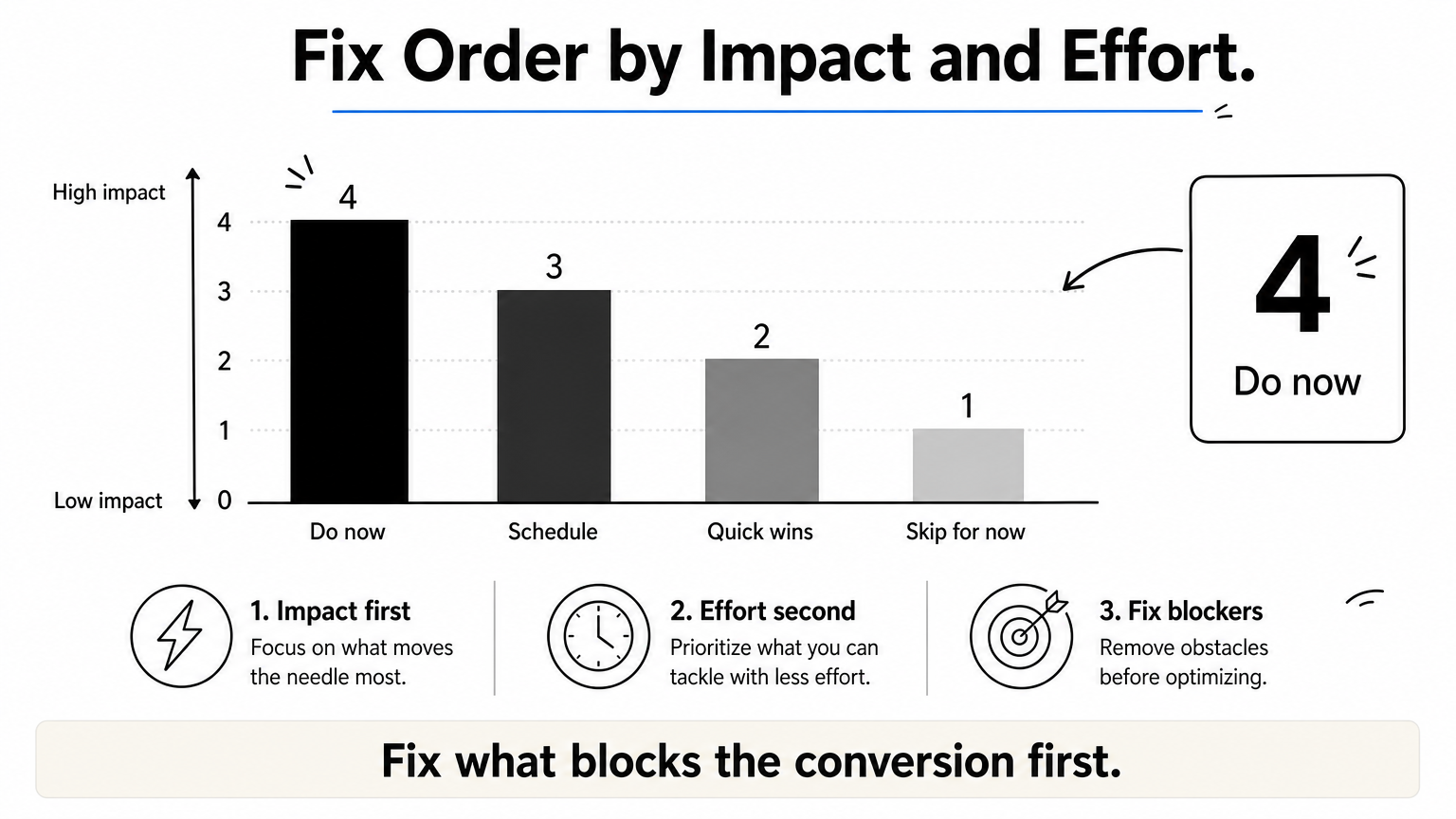
| Priority | Impact | Effort | Typical examples |
|---|---|---|---|
| Do now | High | Low | Compress the hero image, uncover a blocked button, match the headline to the ad |
| Schedule | High | High | Remove heavy scripts, rebuild a long form, redo the mobile layout |
| Quick wins | Low | Low | Add image dimensions, link contact details |
| Skip for now | Low | High | Cosmetic redesigns |
Anything that blocks the goal ranks first, whatever its score. A button that does not respond on mobile costs you more than a small layout shift ever will.
Fix what stops the conversion before you shave milliseconds off the load.
Work through the "Do now" group in this order, because earlier fixes change what you see in later ones:
Ship changes in small batches and log each one with its date. If you change ten things on Monday, you will not know which one moved the rating. Attach the screenshots from Steps 4 and 5 to each ticket, so a developer sees the problem without a meeting.
Some bugs only appear on certain phones or browsers, and you will never catch them by hand. For those, an automated QA agent like Patch tests the journey from homepage to checkout on real devices and files reproduction steps with video. That turns a vague complaint into a ticket someone can close.
Fixes only count if they hold. Pages slip back every time someone adds a tag, swaps a hero image, or launches a new offer, so treat your landing page experience test as a routine, not a one-off project. This step closes the loop you opened with the baseline from Step 1.
Repeat the same checks, in the same order, on the same URL. Matching conditions is what makes the comparison fair.
Then put the new numbers beside your baseline. If lab scores improved but conversion did not, the issue you fixed was not the one holding visitors back. Go back to your recordings and look again.
Not every signal moves at the same speed, and judging too early leads people to undo good changes.
| Signal | How long a fix takes to show |
|---|---|
| Lighthouse lab score | Immediately |
| PageSpeed field data | Up to 28 days |
| Search Console Core Web Vitals | About 28 days |
| Ads landing page experience rating | Often several weeks, if traffic is high enough |
| Conversion rate | At least two weeks |
Field data uses a rolling 28-day window, so old slow visits fade out gradually. The Core Web Vitals report in Search Console groups failing URLs, which helps you see whether a fix reached every similar page, not only the one you tested.
Lab scores prove a fix shipped; field data and conversions prove it worked.
Monitoring works best when it is tied to events and a calendar. A quick landing page experience check after every release catches regressions while they are still cheap to reverse.
If you would rather not run this by hand, Dash and Patch watch speed and the customer journey continuously, so a regression reaches you as an alert, not as a bad month of results.
Every free landing page experience tester answers a slightly different question, so the right choice depends on which layer you need to check. The table below puts the tools from Steps 2 to 6 side by side. None of them replaces the others, and you can run all five without paying anything.
Use this table to match your question to a tool before you open anything.
| Tool | Best for | Data type | Layer covered |
|---|---|---|---|
| Google Ads Quality Score columns | Rating by keyword | Google's label | All three, as a single rating |
| PageSpeed Insights | LCP, INP, CLS | Field and lab | Speed |
| Lighthouse in Chrome DevTools | Debugging a failing metric | Lab | Speed, basic usability |
| Search Console Core Web Vitals | Groups of failing URLs | Field | Speed |
| Microsoft Clarity | Heatmaps and recordings | Real behavior | Usability, relevance |
Start with the Ads report if you run paid campaigns, because it shows which keywords point to a weak page. Then move to PageSpeed Insights for speed and Clarity for behavior. Lighthouse earns its place once you know a metric fails and need to find the cause.
Use field data to judge, lab data to debug, and a human to check relevance.
Free tools share three blind spots. They cannot tell you whether bots are inflating your sessions, they do not test checkout across many real devices, and they cannot judge message match. A perfect score on every tool can still hide a page that loses money.
Those gaps matter most on ecommerce storefronts, where junk traffic and device-specific bugs distort every result. When manual checks stop scaling, pair the free tools with edge agents like Knox and Patch, which block bad traffic and test the full journey without engineering work.
A landing page experience test is only useful when it ends in action. You now have a repeatable routine: pick one URL and goal, read the Ads rating, measure speed, walk the page on a phone, check message match, watch real sessions, then fix and retest.
The order matters more than the tools. Fix what blocks the conversion first, then speed, then polish, and always compare against the baseline from Step 1. Run the routine after every release, so a landing page experience check becomes a habit instead of a rescue.
Clean data makes every step easier to trust. If junk sessions are inflating your numbers and draining your budget, you can block bad bots before they reach your site and judge your pages by real shoppers only.


.svg)
