A landing page experience report shows how well the page behind your ad serves the person who clicked it. In Google Ads, it is a rating for each keyword (Above average, Average or Below average) and one of the three parts of Quality Score. In Google Analytics 4 (GA4), the closest match is the Landing page report, which shows what visitors do after they arrive. Read the Google Ads rating to learn what Google thinks of the page. Read the GA4 report to learn whether real visitors agree.
The two reports measure different things, and most confusion starts when people treat them as one. This guide explains what each report shows, why it matters for your cost per click and conversion rate, and how to find the landing page experience report in Google Ads and in GA4. It also covers how to read the numbers and what to fix first. You will get a worked example, a symptom-to-cause table, and a monthly routine you can repeat.
At Nostra AI, we work with ecommerce brands whose paid traffic lands on storefront pages that have to load fast and convert. Two problems show up in these reports again and again: slow pages, and bot traffic that distorts the numbers. Both get attention below, because a report is only as useful as the data and the page behind it.
The landing page experience report matters because it tells you whether the page you send paid traffic to helps your campaigns or quietly taxes them. In Google Ads, it also feeds the quality signals that influence how often your ads show and what you pay for clicks.
Landing page experience is one of three components of Quality Score, next to expected click-through rate and ad relevance. Google rates each component as Above average, Average or Below average, and shows an overall Quality Score from 1 to 10 for each keyword. Google describes that number as a diagnostic tool and not a direct input to the auction, as explained in its Quality Score documentation. The signal underneath still counts, because ad quality feeds into ad rank, and ad rank decides where your ad appears and how much the click costs.
In practice, a Below average landing page experience means you pay more for the same position, or lose the position to a competitor with a better page. You can't see the exact math, so treat the rating as a warning light. When it is on, you are probably paying for clicks that your page is not set up to use.
A conversion rate is an outcome. It tells you something is wrong, not what. A landing page report breaks the outcome into stages: did the page load, did the visitor engage, did they act. A page that converts at 2% overall might convert at 4% on desktop and 0.7% on mobile. The blended number hides a mobile problem that the report shows in two clicks.
Used together, the reports answer questions like these:
When people search for a "landing page report," they might mean any of the four reports below. Knowing which one you need saves an hour of clicking through the wrong menus.
| Report | Where you find it | What it tells you |
|---|---|---|
| Landing page experience rating | Google Ads, Search keywords view, Quality Score columns | Google's rating of the page for each keyword |
| Landing pages report | Google Ads, left-hand menu | Clicks, conversions, mobile speed score and mobile-friendly click rate per URL |
| Landing page report | GA4, Reports, Engagement | Sessions, engagement, key events and revenue for the pages where sessions start |
| Performance report by page | Google Search Console | Organic impressions, clicks, click-through rate and position per page |
The first two come from Google's ad system and describe how Google sees your page. The third comes from your own analytics and describes what visitors did. The fourth covers unpaid search only. Most of this article concentrates on the first three, because they answer the question behind this search.
A landing page rating tells you what Google thinks, and the GA4 report tells you what visitors do. You need both.
To find the landing page experience report in Google Ads, open the Search keywords view and add the Quality Score columns. The rating lives at the keyword level, so there is no single page that lists a rating per URL, but you can build that view yourself.
Menu labels in Google Ads change from time to time, but the path has been stable for years. Follow these steps:
Hover over the status in the Landing page exp. cell and Google shows a short explanation of what the rating means. The three ratings, Above average, Average and Below average, are the whole report. There is no numeric score for landing page experience on its own, only the combined 1 to 10 Quality Score.
Because the rating belongs to a keyword, you need one more column to see it by page. Add Final URL to the same table through the Columns menu, then sort by that column. Now every keyword that sends traffic to the same page sits together, and you can see whether the rating problem belongs to a page or to a handful of keywords. This simple grouping is what turns a list of statuses into a diagnosis, and the next section shows how to read it.
Google Ads also has a separate Landing pages report, listed in the left-hand menu under Campaigns in most accounts. If you can't see it, use the search icon in the menu bar. It reports performance for each landing page URL: clicks, click-through rate, conversions and cost. It also includes mobile-focused columns such as the mobile speed score, which Google rates on a 1 to 10 scale, and the mobile-friendly click rate, the share of mobile clicks that went to a mobile-friendly page. A valid AMP click rate column also exists, but it only matters if you still use AMP pages.
Use this report to find the URLs with the most spend, then check their mobile speed score before you touch the page. A weak mobile speed score on a high-spend URL is usually the cheapest problem to fix.
A dash means Google does not have enough data to rate the keyword. This is common for new keywords and for keywords with very few impressions or clicks. You can't force a rating, and it does not mean the page is bad. Also expect a delay after you improve a page. Ratings update over time, not on the day you ship a fix, so judge changes over several weeks of data.
The rating belongs to a keyword, so add the Final URL column and sort by it. That is how you turn a status into a diagnosis.
Read the three ratings as a triage signal: Above average means leave the page alone, Average means look for improvements, and Below average means the page is likely costing you money on that keyword. The rating is a verdict on the match between your keyword, your ad and the page, not on the page in isolation.
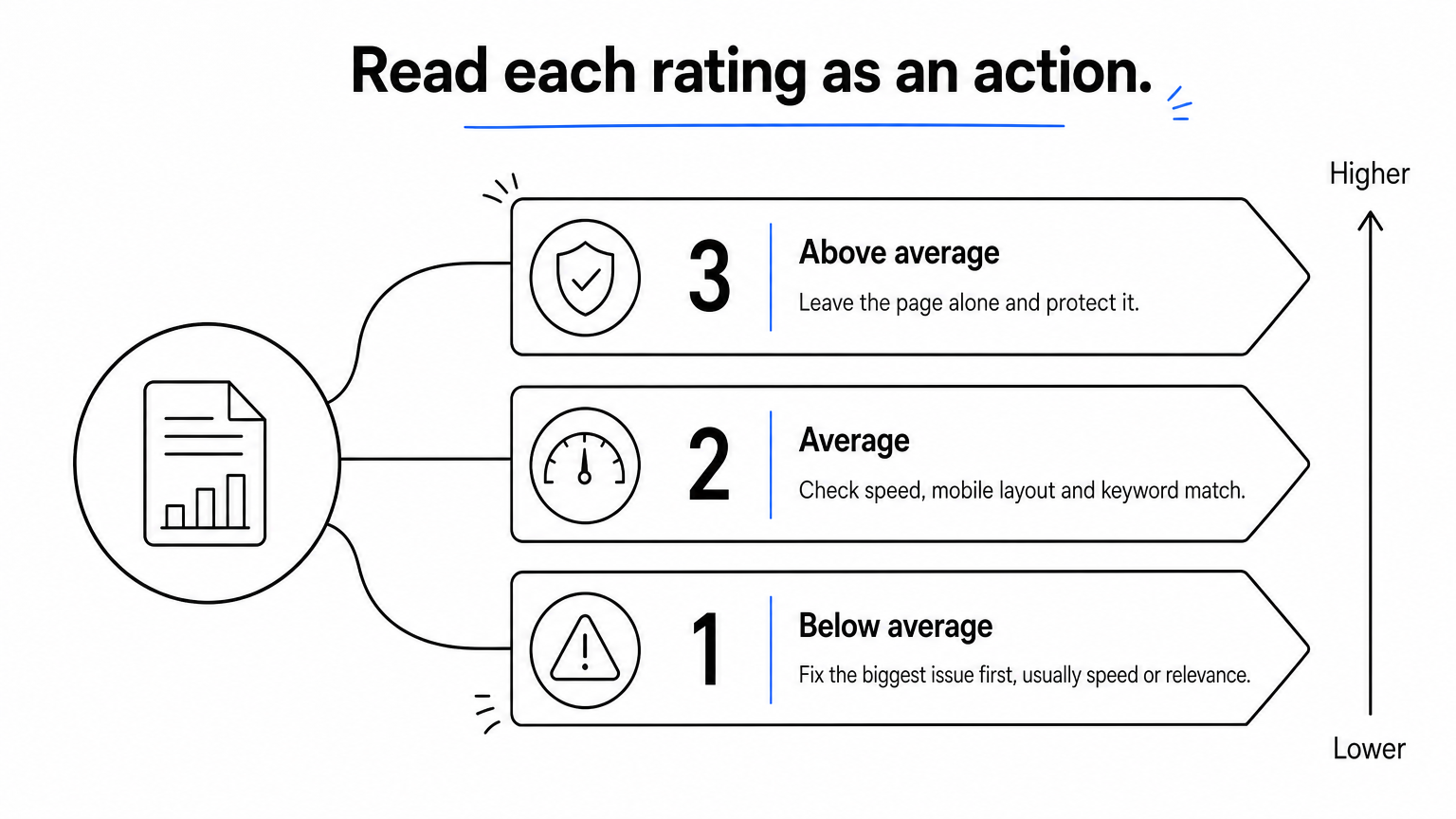
Google's help pages describe the factors behind landing page experience: relevant, useful and original content, transparency and trustworthiness, easy navigation, mobile-friendliness and fast load time. The table translates the ratings into action.
| Rating | What it signals | What to do |
|---|---|---|
| Above average | No significant landing page problem for this keyword | Leave it alone and protect it during redesigns |
| Average | Some parts of the experience could be better | Check speed, mobile layout and how closely the page matches the keyword |
| Below average | The page needs work for this keyword | Fix the biggest issue first, usually speed or relevance |
Treat "Average" as the most common and least alarming result. Most healthy accounts have many keywords at Average. Chasing every keyword to Above average is rarely worth the effort.
One Below average keyword tells you little. A pattern across keywords tells you a lot. Compare the rating with the Final URL and look for these shapes:
| Pattern | Likely cause | First check |
|---|---|---|
| Every keyword on one URL is Below average | Page-level problem: slow load, poor mobile layout, thin content, weak trust signals | PageSpeed Insights and a mobile screenshot of that URL |
| Same URL, mixed ratings | Relevance mismatch: the page serves some keywords better than others | Compare keyword wording with the page headline and top section |
| Landing page experience is the weakest of the three components | The ad is fine, the page fails to deliver on it | The page, then the message match with the ad |
| Ad relevance is the weakest component | The ad text does not match the keyword | Ad group structure and ad copy |
| Dash on new keywords | Not enough data yet | Wait and recheck |
Here is a worked example. An ad group has 8 keywords that send traffic to three pages.
| Landing URL | Keywords | Rated Below average | Reading |
|---|---|---|---|
| /trail-shoes | 3 | 0 | Healthy |
| /sale | 3 | 3 | Page-level problem |
| /shoes | 2 | 1 | Relevance mismatch on one keyword |
Four of the eight keywords are Below average, but there are only two problems. The /sale page needs attention across the board, probably speed or a cluttered layout. On /shoes, one keyword such as "trail running shoes" likely lands on a page that shows road shoes first. The fix there is a dedicated page or a better ad group split, not a redesign.
The 1 to 10 Quality Score is a summary, and you should not manage to it. Google itself says it is a diagnostic, and the numbers for keywords with few impressions can move without meaning anything. Look at the component ratings, find the weakest one, and fix that. If landing page experience is the weakest, the page is your job. If expected click-through rate or ad relevance is weakest, the problem is in your ads.
Same URL with mixed ratings means a relevance problem. Same URL with uniformly poor ratings means a page problem.
In GA4, open Reports, then Engagement, then Landing page. This report lists the pages where sessions begin, along with engagement and revenue numbers, and it is the best place to check how visitors behave after the click.
If you can't find it in the navigation, use the search bar at the top of GA4 and type "landing page." Then set the report up for a useful view:
Your homepage shows up as "/" in this report, which confuses many first-time users. Any page can be a landing page in GA4, as long as it is the first page of a session. That includes blog posts, collection pages and product pages, not only the pages your marketing team designed as landing pages.
The default report includes six metrics. Here is what each counts and how to use it.
| Metric | What it counts | How to use it |
|---|---|---|
| Sessions | Visits that began on the page | Shows where your volume is and where a fix pays off most |
| Active users | People who engaged with your site in the period | Shows reach, but not session quality |
| New users | First-time visitors to your site | Shows how much the page works as a first impression |
| Average engagement time per session | Time the page was in focus, per session | Compare pages against each other, not against a universal benchmark |
| Key events | Times a visitor triggered an event you marked as key | The closest the default report gets to conversions |
| Total revenue | Purchase, subscription and ad revenue | Ties pages to money, if ecommerce tracking works |
GA4 renamed conversions to key events, so older guides use the former term. Revenue is only as good as your tracking, so confirm that purchases are recorded correctly before you trust a page-level revenue comparison.
The default view has no engagement rate, bounce rate or key event rate. You can add them in a custom exploration. Open Explore, start a blank exploration, and add the Landing page + query string dimension. Then import metrics such as sessions, entrances, engagement rate, bounce rate, session key event rate and key events. Double-click each to place it in the table.
In GA4, an engaged session lasts at least 10 seconds, includes a key event, or includes at least two page or screen views. Bounce rate is the share of sessions that were not engaged, so it is the mirror image of engagement rate. The query string version of the dimension is also useful for paid traffic, because campaign tagging usually lives in the URL and the standard report strips it out.
The default GA4 report shows volume. Add engagement rate and key event rate and it starts showing quality.
Match each weak metric to its most likely cause before you change anything: low engagement points to message mismatch or speed, low key event rate with good engagement points to the offer or the form, and poor results on one device point to a layout or bug problem. The metric tells you where to look, not what to rewrite.
Use this table to go from a number in the report to the first thing worth checking.
| Symptom in the report | Likely cause | Where to check |
|---|---|---|
| Low engagement rate, short engagement time | Slow load, or the page does not match the ad promise | PageSpeed Insights, ad text against page headline |
| Good engagement, low key event rate | Weak offer, unclear call to action, long or broken form | Session recordings, the form on a real phone |
| Mobile far below desktop | Layout, tap targets, speed, or a mobile-only bug | Device comparison in GA4, a test on a real device |
| High sessions, near-zero engagement from one source | Bot or low-quality traffic | Source and medium, country, device and browser breakdown |
| Falling key event rate on stable traffic | Recent site change, tracking break or new bug | Release history, key event tags |
| Good key event rate, low volume | Under-served page | Ad group structure, bids and budget |
Raw conversion numbers can hide which page costs you more. Assume every session below comes from a paid click at an average of $2.00 per click.
| Page | Sessions | Engagement rate | Key events | Key event rate | Ad cost | Cost per key event |
|---|---|---|---|---|---|---|
| /summer-sale | 4,000 | 48% | 60 | 1.5% | $8,000 | $133.33 |
| /running-shoes | 1,500 | 71% | 60 | 4.0% | $3,000 | $50.00 |
Both pages produce 60 key events, so a glance at total conversions makes them look equal. But the sale page costs $133.33 per key event, which is 2.67 times more than the running shoes page. Its engagement rate of 48% also points to the cause: visitors leave before they act. If a fix lifted /summer-sale to a 3% key event rate, the same $8,000 would produce 120 key events at about $66.67 each. That is the size of the prize, and it explains why you fix the high-spend page first.
Segment every weak page by device category and browser before you touch the copy. A page that engages well on desktop but poorly on mobile usually has a layout, speed or functionality problem, and a rewrite will not fix it. A broken form on one browser looks exactly like a weak offer in the numbers, since visitors read the page, try to submit and fail.
This is the kind of fault our Patch agent is built to catch. It walks the customer journey from the homepage to checkout on real desktop and mobile devices, in Chrome and Safari, and files bug reports with reproduction steps and video. Whatever tool you use, test the key path on a real phone before you decide the page has a copy problem.
Fix the page with the highest spend and the weakest engagement first. That is where the same budget returns the most.
Speed is the one landing page factor that both Google and your visitors measure directly, and Core Web Vitals are the standard way to measure it. Check them with PageSpeed Insights, and confirm them against your landing pages' real-user data in Search Console.
Core Web Vitals are three metrics: Largest Contentful Paint (LCP), Interaction to Next Paint (INP) and Cumulative Layout Shift (CLS). INP replaced First Input Delay in 2024. If someone asks for the top three website performance metrics, these are the answer. Google judges a page by the 75th percentile of real page loads, per the Core Web Vitals guidance on web.dev.
| Metric | What it measures | Good | Needs improvement | Poor |
|---|---|---|---|---|
| LCP | How fast the largest visible element loads | 2.5 seconds or less | 2.5 to 4 seconds | Over 4 seconds |
| INP | How quickly the page responds to taps and clicks | 200 ms or less | 200 to 500 ms | Over 500 ms |
| CLS | How much the layout jumps while loading | 0.1 or less | 0.1 to 0.25 | Over 0.25 |
For landing pages, LCP is usually the first to fail, since hero images and heavy scripts delay the biggest element. CLS often fails because of late-loading banners, fonts or review widgets that push content down just as a visitor tries to tap.
PageSpeed Insights shows two kinds of results. Field data comes from real Chrome users over the previous 28 days. Lab data is a simulated test run on a single device and connection. When they disagree, trust field data for the verdict and use lab data to find causes, since you can rerun a lab test after every change.
Low-traffic landing pages may have no field data at all. In that case, test the page on a mid-range phone over a mobile connection. Your visitors are not using the laptop on your office network, and the page they see is slower than the one you see.
The biggest wins usually come from smaller, correctly sized images, fewer third-party scripts, deferred below-the-fold content and edge delivery that serves pages from locations close to the visitor. Many of these changes need developer time, which is the main reason speed work stalls.
Our Dash agent takes a different route. It accelerates pages at the edge after a DNS-level change, with no code changes, and reaches full acceleration in about two weeks. Nostra reports up to 47% faster load times and an expected revenue lift of about 3%. Whichever route you take, rerun the same PageSpeed test and compare the same URLs before and after, so you know whether the change helped.
Test landing pages on a mid-range phone, not on your office laptop. Your visitors don't browse the way you do.
Bot traffic can make a good landing page look bad, because it adds sessions that never engage and never act. Filter or identify that traffic before you judge any page by its engagement rate or key event rate, or you may rewrite a page that was never the problem.
GA4 automatically excludes traffic from known bots and spiders, but less obvious automated traffic still gets through. Look for these patterns in the Landing page report with a secondary dimension added:
Bots inflate sessions, which makes the denominator of every rate larger. Engagement rate falls, key event rate falls, cost per key event rises, and the page looks weaker than it is. On the Google Ads side, invalid clicks waste budget. Google works to detect invalid clicks and credits advertisers for many of them, but it does not catch everything, and you only see what it chooses to report.
The result is a bad decision loop. The report says the page underperforms, so you redesign it, and the numbers barely move because the underlying problem was the traffic. Compare your paid landing pages with and without suspicious segments before you decide.
Filtering bad traffic at the edge cleans the report at its source, so the data you analyze comes from real shoppers. Our Knox agent blocks malicious bot traffic before it reaches your site, which stops it from distorting analytics or wasting ad spend. Verified crawlers such as Googlebot, ChatGPT and Claude are let through, which matters because blocking the wrong crawler can create landing page problems of its own. Knox goes live in under a day with no code changes.
Whatever you use, check that your bot protection never blocks Google's own crawlers. A page Google can't reach can't earn a good rating.
Clean the traffic before you judge the page. Bots make good pages look bad.
A monthly routine keeps the review short and the fixes focused: check Google Ads ratings by URL, check GA4 behavior for the same URLs, run a speed test on flagged pages, make one change per page and log it. Thirty minutes is enough if you follow the same order every time.
These are working rules, not Google thresholds. Act when half or more of a URL's keywords are Below average and the URL carries meaningful spend. Investigate when key event rate drops by roughly a fifth against the previous period while traffic is stable. Ignore single-keyword ratings with little spend, and ignore dashes on new keywords until they have gathered data.
Seasonal shifts also change behavior, so compare against the same period last year where you can. A holiday traffic mix has more new visitors and more mobile browsing, and both lower engagement without any change to the page.
When you change the headline, the hero image and the form in the same week, you will not know which one helped. Make one change, wait for enough sessions to compare, then move on. Keep a simple log with the date, the URL, the change and the metric you expect to move. When the Google Ads rating shifts a few weeks later, the log tells you why.
One change per page, one line in a log. That discipline is what makes the next review useful.
The questions below come up often once people start reading these reports. Each one has a practical answer you can apply to your own pages.
A good landing page keeps the promise the ad made, quickly. If the ad says "trail running shoes with free returns," the visitor should land on trail shoes with the returns policy visible, not on a general homepage. The page should load fast on a phone, make one primary action obvious, and show proof such as ratings, policies and contact details. Here is a checklist:
Landing pages are still relevant because every paid click, every search result and every link from an AI answer lands somewhere, and that page decides whether the visit pays off. GA4 treats any page as a landing page, so the discipline applies to product pages and collections as much as to campaign pages.
There is no single fair price for a landing page, since the range runs from a template in a page builder to custom design and development work. A better question is what the page costs per key event. The worked example earlier shows the idea: a page that costs $133.33 per key event is expensive even if it was cheap to build.
For page speed, the three metrics are LCP, INP and CLS, as in the thresholds table above. For behavior, watch engagement rate, key event rate and cost per key event. The speed metrics tell you whether the page works, and the behavior metrics tell you whether it persuades.
If you can only monitor a few numbers every month, track LCP on mobile, engagement rate for paid sessions and cost per key event by landing page. Those three cover speed, quality of visit and money in a single glance.
Speed gets visitors in, relevance keeps them, and cost per key event tells you whether it was worth the click.
A landing page experience report is Google's verdict on the match between your keyword, your ad and your page, and the GA4 Landing page report is your visitors' verdict. Read the Google Ads rating by URL, find the pattern, check behavior and speed for the same pages, and change one thing at a time. Make sure the data is clean before you trust it.
Start this week with the highest-spend page that has Below average keywords. Run it through PageSpeed Insights, check it on a real phone, and look at its engagement rate in GA4. If sessions look inflated by traffic that never engages, filter bad bot traffic in real time with Edge Protect so that your reports reflect real shoppers and your ad budget goes to them.


.svg)
